

Most small business owners lose about 16 hours a week to admin. Nobody decided to spend time this way — it just accumulated, one inbox reply and one meeting recap at a time.
Here’s the pattern. You answer an email between client calls. You scribble meeting notes you’ll “type up later.” You track tasks in three different places because none of them stuck. None of this feels urgent in the moment, but by Friday, half your working week belongs to admin instead of the business itself.
Routine admin — email, meetings, task tracking — quietly consumes owner time because nobody standardised the process before trying to speed it up. That’s the real issue: not a lack of effort, but a lack of structure underneath the effort.
This is where most advice goes wrong. Most articles hand you a list of ten apps and call it a solution. But AI tools for small business owners only save real time when you fix the process first and pick the tool second. Otherwise you’re just automating a problem instead of removing it.
Pro-Tip: Before installing anything, track exactly how you handle one admin task — say, replying to client emails — for three real instances this week. Write down each step you actually take. That short exercise usually reveals the inconsistency that’s quietly costing you the most time, and it tells you exactly what to standardise before any AI office assistant can help.
This guide walks through which admin tasks to standardise first, the four core workflow steps worth building around, and where AI task management genuinely earns its place — without adding one more tool you’ll abandon in three weeks.
Table of Contents
The 4 Admin Tasks Your AI Office Assistant Should Handle First
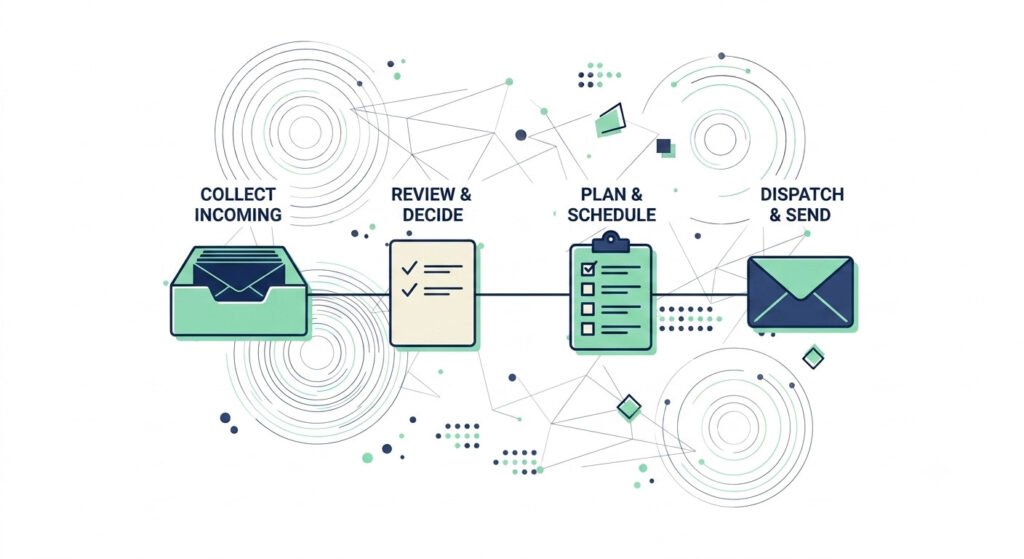
The four recurring admin tasks that eat the most owner time are inbox sorting, meeting notes, task extraction, and routine email drafting. These are the four places an AI office assistant can genuinely help — but only once the process behind each one is solid.
Here’s the full scope:
- Inbox sorting and triage: deciding what’s urgent, what needs a reply, and what’s just reference material
- Meeting notes and action items: turning a conversation into a trackable next step instead of a forgotten page of scribbles
- Task extraction and tracking: pulling commitments out of emails and meetings into one place you actually check
- Routine email drafting: replies you write over and over, without starting from a blank page each time
Weekly reporting isn’t a separate fifth topic here — it lives inside task extraction. If your tasks are already tracked cleanly, a weekly report is just a summary of what’s already sitting in one place, not a new workflow to build from scratch.
Pro-Tip: Read these four areas in order, not all at once. Fixing your inbox sorting first makes meeting notes easier to act on, since fewer stray emails compete for your attention while you’re processing action items.
Each of these is a task to standardise first, then automate. That order matters more than which tool you eventually pick, and it’s exactly why the next section walks through standardisation before touching a single app.
Why AI Tools for Small Business Owners Actually Matter
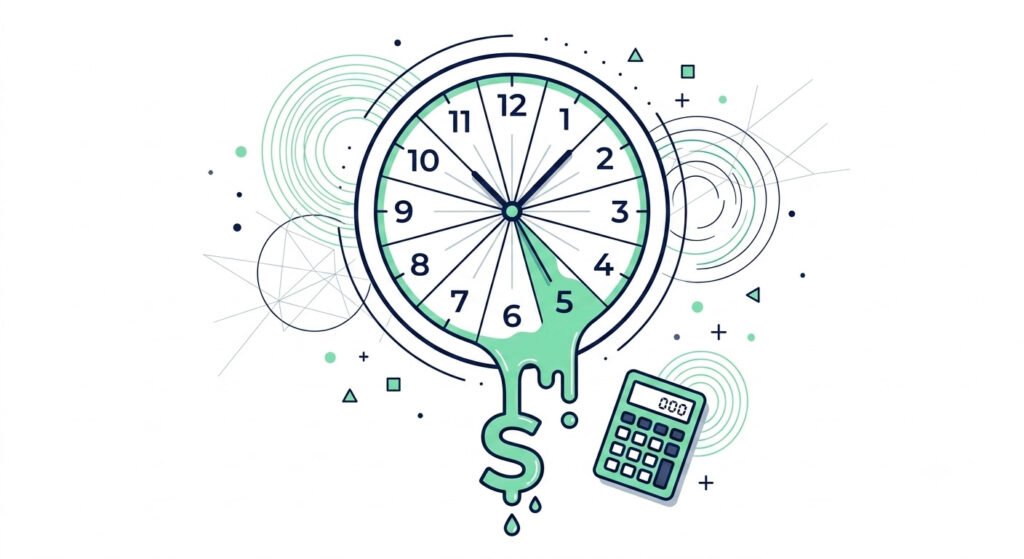
AI tools for small business owners matter because admin time trades directly against revenue-generating work. Owners lose an average of 16 hours a week to inbox sorting, meeting notes, and task tracking — worth roughly $800 a week at a $50 hourly rate. Standardising the task first is what makes the AI tool actually save that time.
Every hour spent on inbox triage is an hour not spent on sales calls, client delivery, or the work that actually pays you.
Let’s put a number on it. If you’re losing 16 hours a week to admin and your time is worth even a modest $50 an hour in billable or business-building value, that’s $800 a week — over $3,000 a month — quietly absorbed by tasks that don’t grow the business at all.
Here’s the fear that usually stops people here. Adding AI feels like adding more complexity: one more login, one more thing to configure, one more subscription to remember. That fear is valid, tool fatigue is real, and it’s exactly why this pillar isn’t another list of ten apps to try.
Flip the framing instead. The right AI tools for small business owners don’t add complexity — they remove hours you were already losing anyway. The goal isn’t more tools, it’s fewer hours spent on work that was never the point of running your business.
Pro-Tip: Calculate your own hourly value once, using last month’s revenue divided by hours worked, and write that number somewhere visible. Every time you’re deciding whether a task is worth automating, compare it against that number instead of guessing.
This entire pillar stays grounded in that math — time saved and missed-opportunity risk, not vague promises about what AI can theoretically do. If a tool or workflow doesn’t show up as fewer hours lost or less revenue at risk, it doesn’t belong in your admin stack.
Which Admin Tasks to Standardise Before You Add AI
Standardising a task before automating it if it happens the same way every time, has a clear start and end point, and needs no case-by-case judgment. Inbox sorting and meeting notes usually qualify. One-off negotiations don’t — automating those just speeds up inconsistency.
Use this table to decide what to standardise first:
| Task | Standardise First? | Why |
|---|---|---|
| Inbox sorting | Yes | Needs consistent rules for what counts as urgent, needs a reply, or reference only |
| Meeting notes | Yes | Needs a fixed output format before AI can fill it in reliably every time |
| Client email replies | Partially | Tone and facts need a template first, but the structure can be reused |
| One-off complex negotiations | No | Too variable for automation yet, judgment changes every time |

If you’ve been told to track your time for a week to spot patterns, take that a step further. For each repeating task you find, ask yourself three questions:
- Does this start and end the same way every time?
- Do I handle it using the same steps, or do I improvise each time?
- Can I write down a one-paragraph description of what “done” looks like?
If you answer yes to all three, you’ve got a candidate for standardisation. If not, leave it manual for now and revisit once you’ve simplified the process.
Pro-Tip: Don’t try to standardise everything at once. Pick the task stealing the most hours from you right now — usually inbox sorting or meeting notes — and write down the exact steps you take. That written process becomes your standardisation checklist before any AI ever touches it.
This is where most “AI for administrative tasks” guides stop short. They tell you what to automate, but not which tasks are actually ready. The difference is what separates a working system from another subscription you barely use.
The 4-Step AI Admin Automation Workflow (In Order)
The four core admin workflow steps are sorting your inbox, turning meeting notes into action items, extracting and tracking tasks, and drafting routine emails. Fix them in that order — each one has its own standardisation step before any tool gets involved.
Step 1: Sort your inbox using fixed rules. Before any AI inbox triage assistant touches your email, decide on three categories: urgent, needs a reply, and reference only. Apply those same three labels manually for a week first, so the rule is actually consistent before software takes over. Get familiar with inbox triage best practices (coming soon) before automating this step.
Step 2: Turn meeting notes into action items. Once your note format is fixed — one heading for decisions, one for owners, one for deadlines — an AI meeting note taker can reliably fill it in every time. Read the full walkthrough on how to turn meeting notes into action items (coming soon) for the exact template and prompt to use.
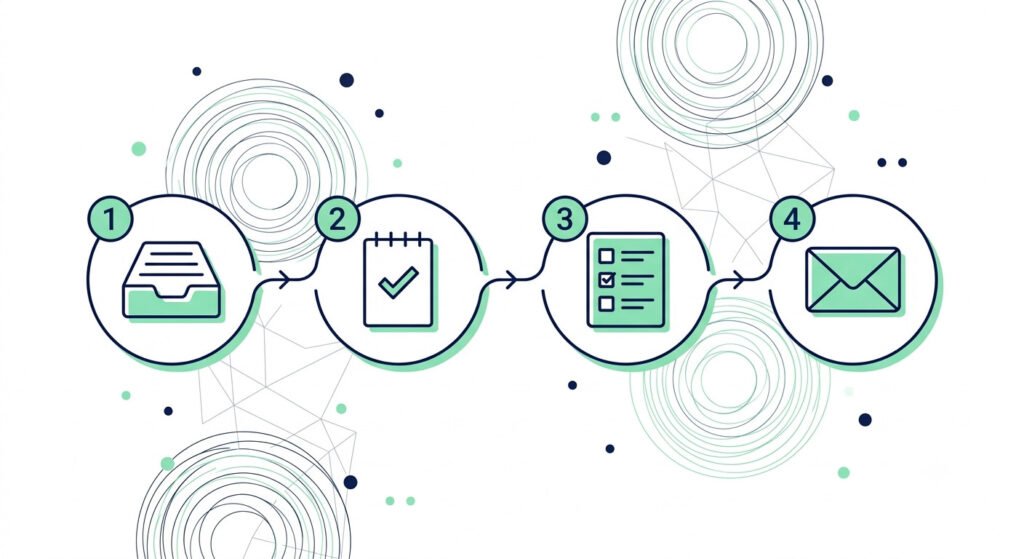
Step 3: Extract and track tasks from notes and emails into one list. This is where an AI task extraction assistant does its real work, pulling commitments out of scattered messages so nothing lives only in your memory. One list, checked daily, beats three half-updated apps every time.
Step 4: Draft routine emails using templates. The replies you write over and over — scheduling confirmations, invoice reminders, status updates — are exactly where an AI email drafting assistant saves the most time. See how to use AI for routine business emails (coming soon) for five ready-to-adapt examples and the one review step you should never skip.
Pro-Tip: Don’t try to fix all four steps in one week. Pick the step costing you the most hours right now, usually inbox sorting or meeting notes, and get that one working cleanly before touching the next. A half-fixed system across four areas is worse than one area fully solved.
Once Step 2 feels standardised and you’re ready to pick a tool, we compared Otter, Fireflies, and Fathom specifically for small teams, so you’re not testing three trials yourself just to find the one that fits.
Common Mistakes When Adding AI to Admin Work
The most common mistake is skipping the standardisation step. That shortcut turns AI into something that makes an inconsistent process faster instead of fixing it — and faster chaos is still chaos.
Here are the four mistakes worth watching for, in order of how often they actually happen:
- Automating a task before it’s consistent. If you handle client emails a different way every time, AI just copies that inconsistency at higher speed. Speed was never the problem, the missing pattern was.
- Picking a tool before defining the output format you actually need. Choosing software first means bending your workflow to fit the tool, instead of picking the tool that fits a format you’ve already decided on.
- Skipping the human review step on anything client-facing. An AI-drafted email or decline message should never leave your inbox unread by you first — one wrong tone or missed detail costs more than the time you saved.
- Trying to fix all four workflow areas in one week instead of one at a time. Attempting to automate small business admin across email, meetings, and tasks simultaneously usually means none of the four ever gets properly standardised.

Notice the pattern here. Every mistake above comes from reaching for the tool before the process is ready, not from AI itself being unreliable.
Pro-Tip: If a workflow feels messier after adding AI, don’t blame the tool yet. Pause it, go back to doing that one task manually for a week, and write down the exact steps you take. Nine times out of ten, the tool wasn’t broken — the process underneath it never existed in the first place.
Getting this order right — standardise, then automate — is what separates a business that runs smoother with AI from one that just moves faster toward the same mess.
Tools That Support This Workflow
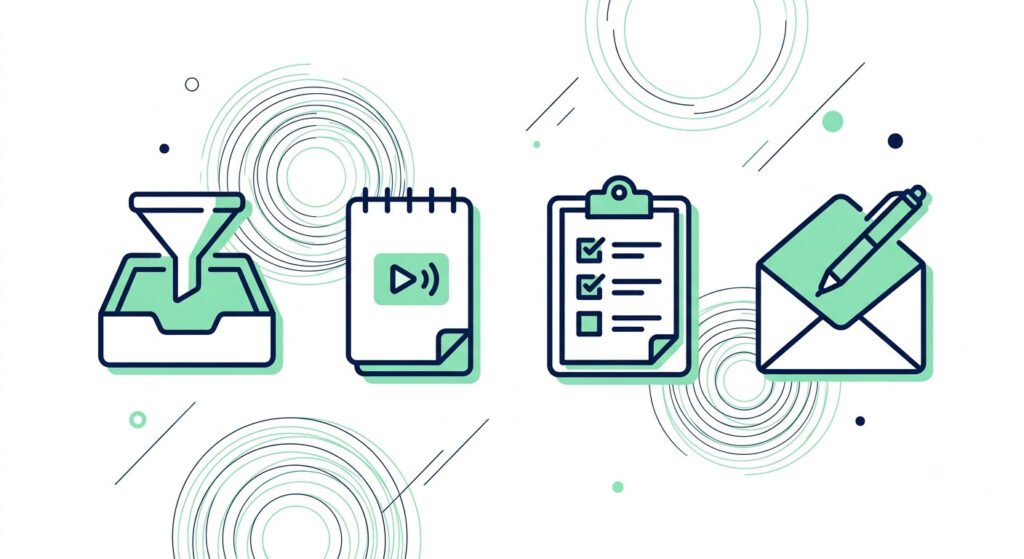
This workflow is supported by four tool categories: an inbox assistant, a meeting note taker, a task manager, and an email drafting assistant. Each solves exactly one of the four steps above — nothing more, nothing overlapping.
Here’s what each category actually does:
- Inbox assistant: sorts and flags incoming email against the rules you already defined in Step 1
- Meeting note taker: turns a recorded conversation into structured action items, once your note format is fixed
- AI task management tool: tracks everything extracted from emails and meetings in one place you actually check
- Email drafting assistant: writes first-pass replies for the routine messages you send over and over
You’ll find specific product recommendations for each category on the Tools hub, rather than named here. That’s intentional — this pillar stays evergreen, and tool pricing and features change fast enough that a living comparison page serves you better than a static list buried in an article.
Pro-Tip: Resist picking a tool from any category until Step 1 for that specific task is actually standardised. A great meeting note taker applied to a messy, undefined note format still produces a messy output — the tool amplifies whatever process you feed it.
One category, four categories, it doesn’t matter which one you start with. What matters is that tool choice only earns its place after the standardisation step is done, not before.
Frequently Asked Question
How much time can AI tools actually save a small business?
Small business owners typically lose around 16 hours a week to routine admin, and standardising a task before adding AI can realistically remove several of those hours, since the tool works reliably against a consistent process instead of fighting inconsistency.
What admin tasks should I automate first with AI?
Start with tasks that already happen the same way every time, like inbox sorting or meeting note formatting, since these standardise easily. Avoid automating one-off, judgment-heavy tasks like complex negotiations until a clear pattern exists.
Do I need multiple AI tools to manage small business admin?
Most one-to-five-person businesses need at most four tool categories — an inbox assistant, a meeting note taker, a task manager, and an email drafting assistant — and often one tool covers more than one category.
Is it risky to let AI handle business admin without review?
Yes, for anything client-facing. A human should always review the AI-generated output before it goes out, since AI can miss context or tone that only the business owner would catch.
Conclusion
AI tools for small business admin only work as well as the process underneath them. Standardise the task first, then let the tool remove the repetition, not the other way around.
Pick one workflow step from this pillar to fix this week. That could be inbox sorting, meeting notes, task extraction, or routine emails. Once that one piece feels consistent, move to the next.
Use the linked tutorials to keep building the system one piece at a time:
- How to Turn Meeting Notes Into Action Items With AI (coming soon)
- Best AI Meeting Note Taker for Small Business: Otter vs Fireflies vs Fathom (coming soon)
- How to Use AI for Routine Business Emails (coming soon)
Pro-Tip: Treat each tutorial as a checklist, not a one-time read. Work through the steps, implement the template, and only move on once the new workflow actually saves you time every week.
You’re not trying to overhaul your entire business in a weekend. You’re stacking small, repeatable wins until the manual grind disappears one step at a time.