A Google Sheets CRM template gives you a fast way to track leads without building a system from zero. You can copy the template and start organizing leads in minutes.
Most solo founders and small teams lose leads for one reason: there’s no system. A follow-up gets buried in your inbox. A promising contact goes cold because nobody wrote down when to check back in. This google sheets lead tracker fixes that without asking you to learn new software or pay for a tool you’re not ready for.
The practical version is this: a spreadsheet won’t do everything a dedicated CRM does. But it will do the one thing that actually matters right now, which is get every lead written down in one place with a clear next step attached. Use this lead tracking spreadsheet until your business outgrows it.
Table of Contents
Is Google Sheets Good for CRM?
Google Sheets is a good starter CRM for solo founders and small teams that need a simple, flexible way to track leads. For a solo founder or a team of five or fewer managing under 100 active contacts, a google sheets crm template is often the smarter starting point than paying for a tool you’re not ready to fully use.
Here’s where it earns its keep:
- Free, with zero subscription cost
- No learning curve since you already know how to use a spreadsheet
- Fully customizable to match your exact sales process
- Works inside a tool you already open every day
- Fine for 1–5 person teams managing under 100 active contacts

And here’s where it starts to strain:
- No automatic email logging, so every conversation gets entered by hand
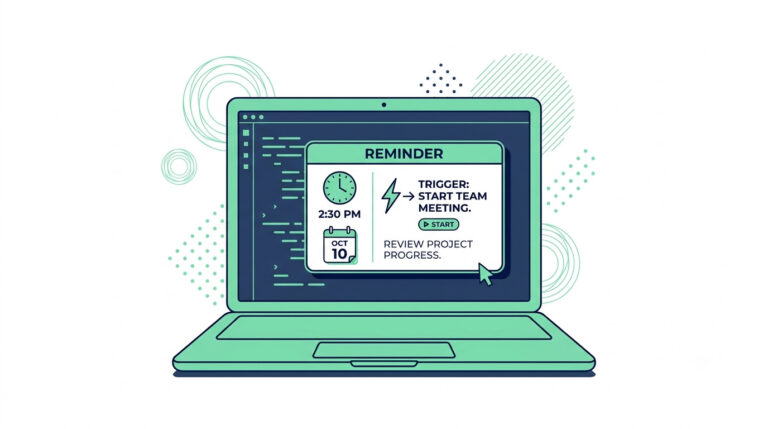
- No built-in reminders unless you set them up yourself with formulas or a separate calendar
- No per-record access control, meaning anyone with edit access sees everything
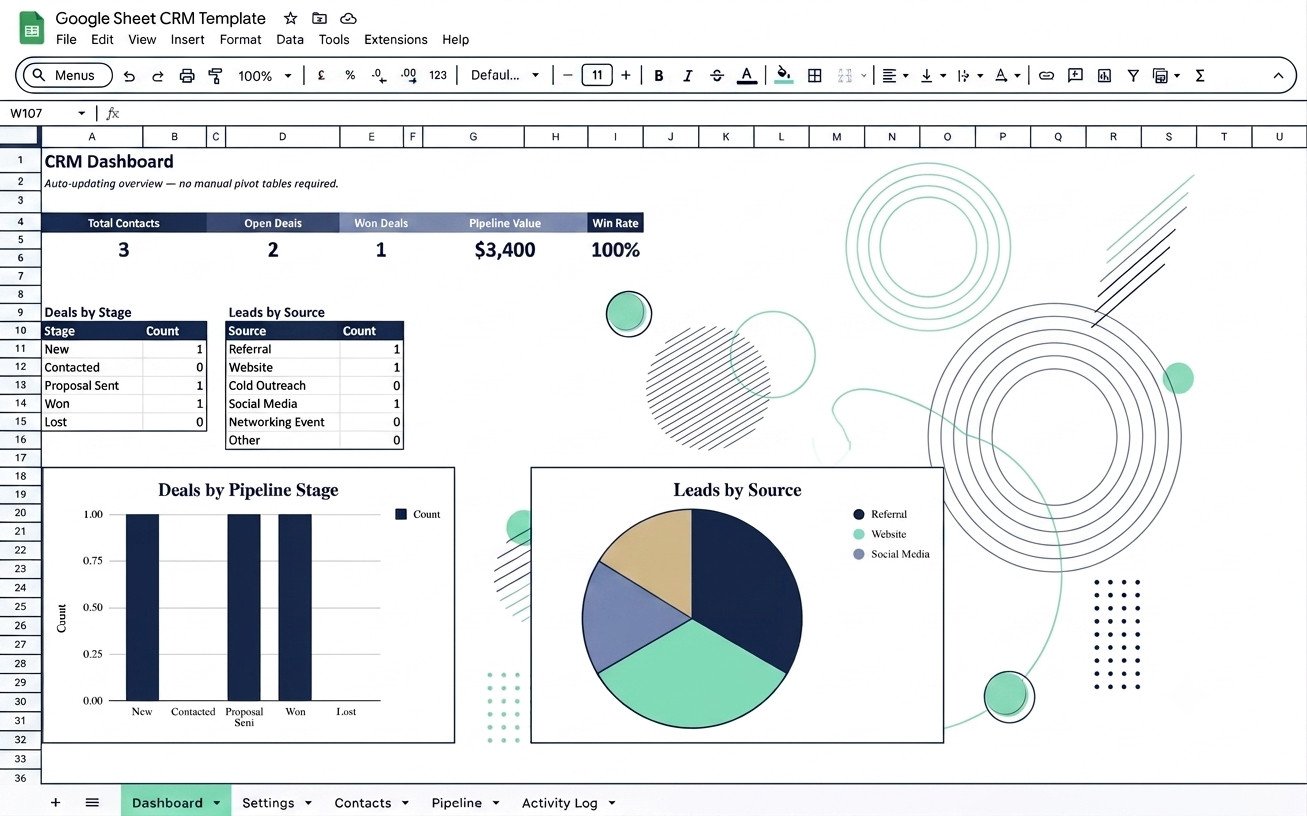
- No reporting dashboards out of the box, so pipeline visibility takes manual work
Pro-Tip: Use conditional formatting to auto-highlight any row where the follow-up date has passed. It’s a five-minute setup that gives you a built-in reminder system without installing a single add-on.
Google Sheets CRM vs. Dedicated CRM
| Factor | Google Sheets CRM | Dedicated CRM |
|---|---|---|
| Cost | Free | Typically $0–$15/seat/month to start, rising to $20–$75+/seat/month on paid tiers |
| Setup time | Minutes | Hours to days, plus onboarding for advanced tiers |
| Automation | Manual (formulas, conditional formatting) | Built-in (email logging, sequences, reminders) |
| Reporting | Manual formulas or pivot tables | Automatic dashboards and pipeline analytics |
| Access control | None — anyone with edit access sees everything | Role-based permissions and per-record visibility |
| Integrations | Limited (Google Workspace apps only) | Native integrations with email, calling, marketing tools |
| Data limits | No hard cap, but unwieldy past ~100 contacts | Built to scale to thousands of contacts |
| Learning curve | None if you already use spreadsheets | Some onboarding required, even on simple plans |
| Best for | 1–5 person teams, under 100 active contacts | Growing teams, higher contact volume, multiple users needing different access levels |
So can a CRM be a spreadsheet? Yes, for solo founders and small teams with simple sales processes, a lead tracking spreadsheet is a complete CRM. Once your contact list or your team grows past that point, the signs it’s time to upgrade become obvious fast.
What This Google Sheets CRM Template Includes
A useful Google Sheets CRM template includes four connected parts: contacts, deals, activity, and follow-ups. Each one answers a different question about your leads: who they are, what they’re worth, what’s happened so far, and what to do next.
Here’s the breakdown:
| Record Type | What It Tracks | Why It Matters |
| Contact record | Name, company, email, phone, source | Your single source of truth for who this person is and where they came from |
| Deal/stage record | Interest, value, pipeline stage | Shows you what’s actually worth chasing right now |
| Activity log | Date, what happened, who handled it | Stops you from asking “wait, did we already talk to them?” |
| Follow-up date and status | Next action, overdue flag | The difference between an active pipeline and a stale contact list |
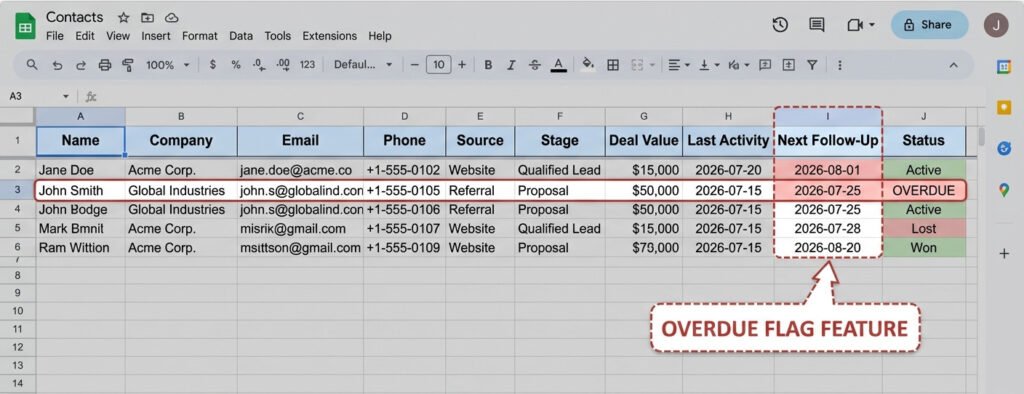
Most spreadsheet CRMs fail for one simple reason: people only build the contact record and skip the other three. That is how follow-ups get missed. A contact list tells you who someone is. It doesn’t tell you whether you’re supposed to call them today.
Pro-Tip: Keep your four record types on separate tabs instead of cramming everything into one sheet. Use a simple formula like =IFERROR(VLOOKUP(…)) to pull the latest activity and next follow-up date onto your main contact tab, so you get a full picture without switching tabs constantly.
Once your structure covers all four record types, you’re not just organizing contacts anymore. You’re running an actual lightweight lead management system that just happens to live in a spreadsheet.
Get the Free Template
Ready to stop managing leads from memory? Grab the free template below, make your own copy in seconds, and you’ll have a working system before your coffee gets cold.
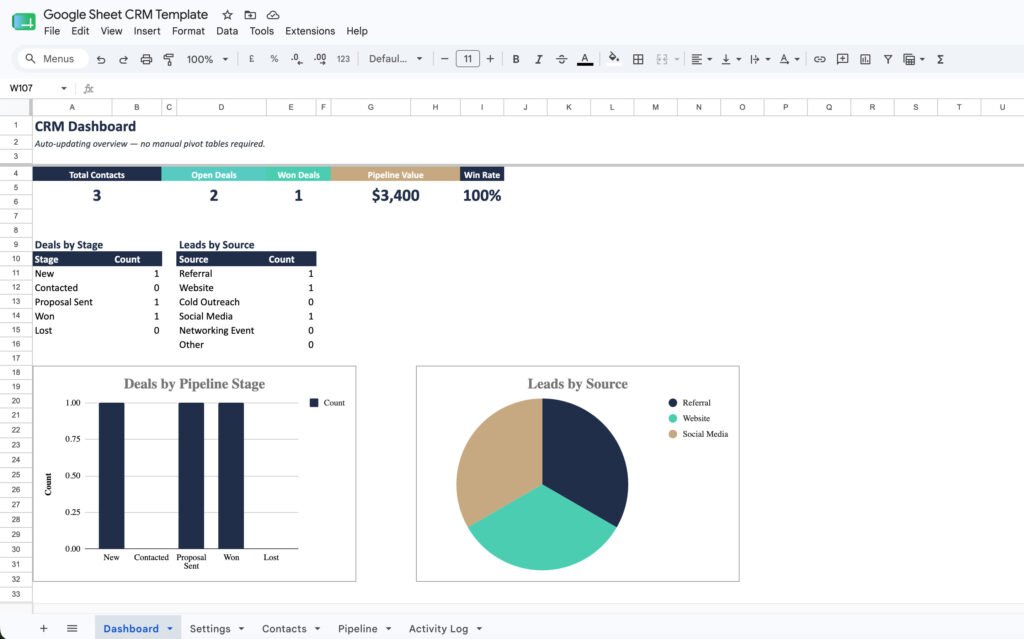
Get Your Free Google Sheets CRM Template — no credit card, no software install, just a copy of the sheet in your own Google Drive.
> Pro-Tip: The moment you click “Make a copy,” immediately rename the file with your business name attached (like “Acme Consulting – Lead Tracker”). This keeps your live copy easy to find later.
Once you’ve made your copy, head straight to the setup walkthrough below to get your columns, stages, and follow-up dates configured in under ten minutes.
How to Set Up Your Google Sheets CRM (Step-by-Step)
Setting up this system takes about ten minutes if you follow these five steps in order. Each one builds on the last, so don’t skip ahead to color-coding before your columns and stages are locked in. If this feels like a lot, start with just the columns and stages—everything else can wait.
Step 1 — Copy the Template and Rename Your Columns
Click “Make a copy” on your free template to save it to your own Google Drive. Rename any column headers you don’t need — swap “Company” for “Project Type” if you’re a freelancer, or add a “Referral Source” column if that’s how most of your work comes in.
Step 2 — Set Up Your Pipeline Stages
A pipeline stage is a label showing where a lead sits in your sales process, from first contact to closed deal. Open the “Stage” column, click Data > Data validation, and build a dropdown list with four to six stages max — something like New, Contacted, Proposal Sent, Won, Lost. Keep the list short; a lead tracking spreadsheet with fifteen stages is harder to scan than one with five.
Step 3 — Add a Follow-Up Date and Status Column
This is the column that turns a plain contact list into an actual lead-tracking system. Add a “Next Follow-Up” date column and a “Status” column right next to it, and fill in a real date for every active lead the moment you add them.
Step 4 — Color-Code or Filter by Priority
Select your “Next Follow-Up” column, go to Format > Conditional formatting, and set a rule to turn the cell red if the date is before today. This gives you an instant, visual overdue flag without opening a single report or dashboard.
Step 5 — Build a Simple Habit for Weekly Review
Block fifteen minutes every Monday to sort your sheet by “Next Follow-Up” and work through anything flagged red first. This single habit does more for your follow-up rate than any feature in the sheet itself — the system only works when someone updates it consistently.
Pro-Tip: Use =TODAY() inside your conditional formatting rule instead of a fixed date, so your overdue flags update automatically every single day without you touching the formula again.
Once this system is running, you’ll know pretty quickly whether it’s holding up. If you start noticing cracks, the signs it’s time to upgrade to a real CRM will tell you exactly what to watch for.
Common Mistakes When Using a Spreadsheet as a CRM
This kind of system only works if you avoid a handful of predictable mistakes. Most spreadsheet CRMs don’t fail because of the tool — they fail because of how people use it. Watch for these four traps.
- No consistent update habit: a lead tracking spreadsheet is only as good as its last update. If you don’t log activity the same day it happens, you’ll forget details and duplicate outreach within a week. Example: you close a deal Friday afternoon but forget to update the stage until Monday, so your Monday review shows stale data and you almost follow up on a deal that’s already won.
- Too many free-text fields instead of dropdowns: typing “won,” “Won,” and “WON” into the same column creates three different values in your data, which breaks your filters and makes reporting impossible. Example: you filter for “Won” deals to calculate monthly revenue, but the report misses six deals because they were typed as “won” or “closed-won” instead.
- No owner column when more than one person touches leads: without an assigned owner, two people end up emailing the same lead, or nobody follows up because everyone assumes someone else has it covered. Example: a warm lead from a webinar gets emailed by two team members the same day because neither checked who owned it, and the lead ends up confused about who they’re actually talking to.
- No backup or version history discipline: one accidental delete or a bad filter-and-sort can wipe out weeks of data. Google Sheets keeps a version history, but most people never check it until it’s too late. Example: someone sorts a single column instead of the whole sheet, scrambling every row’s contact info against the wrong deal stage, and nobody notices until a client mentions details that don’t match your notes.

Pro-Tip: Turn every status, stage, and owner field into a dropdown using Data > Data validation. It takes two minutes per column and permanently eliminates the typo-and-inconsistency problem that quietly wrecks most spreadsheet CRMs.
Fix these four issues and your sheet stays reliable far longer than most solo founders expect. If two or more of these are true, your spreadsheet is slowing you down.
When to Upgrade to a Real CRM
This setup stops working when your business outgrows what a spreadsheet can reasonably handle. Here are the five clearest signs it’s time to move on.
- You’re managing more than 50-100 active contacts. Past this point, scrolling and searching for leads eats more time than the tool saves you.
- You need automatic email logging or call tracking. A lead tracking spreadsheet can’t capture a conversation on its own — every note still has to be typed in by hand.
- More than one person needs different access levels. Google Sheets gives everyone the same view, so you can’t hide deal values from a junior team member or restrict who edits what.
- You’re losing time reconciling manual entries instead of selling. If you’re spending your Monday morning cleaning up duplicate rows and mismatched stages, the system is costing you more time than it’s giving back.
- You need built-in reporting without building pivot tables yourself. A real CRM shows you pipeline velocity and conversion rates automatically — no formulas required.

Pro-Tip: Before you commit to a paid CRM, run this tracker for one more month and track exactly which of these five signs shows up. That data makes choosing between a lightweight tool and a full-featured platform much easier, because you’ll know precisely what you’re solving for instead of guessing.
If two or more of these sound familiar, it’s worth exploring Lead Management for Small Business: A Simple Process Before You Add AI for a broader look at where your business sits right now. And once you’re ready to compare actual platforms, our comparison, HubSpot vs Pipedrive: Which CRM Is Easier for a Small Business to Run?, will help you decide which one fits a growing solo business best.
Frequently Asked Questions
Does Google Sheets have a CRM template?
Google Sheets doesn’t come with a built-in CRM template, but you can copy a pre-built google sheets crm template with contact, pipeline, and follow-up columns already set up. This gets you a working system in minutes instead of building one from a blank sheet.
Is Google Sheets good for CRM?
Google Sheets works well as a CRM for teams of one to five people managing under 100 active contacts, since it’s free, fully customizable, and requires no learning curve. It falls short once you need automatic email logging, per-record access control, or reporting dashboards without building your own pivot tables.
Does Google have a CRM tool?
Google doesn’t sell a dedicated CRM product, but Google Workspace integrates with third-party CRMs and supports spreadsheet-based systems like a google sheets lead tracker. Tools like Google Contacts and Gmail can sync with these platforms, but neither one functions as a standalone CRM on its own.
Can a CRM be a spreadsheet?
Yes, a spreadsheet can be a complete CRM for a defined size and stage of business, typically a solo founder or small team with a simple sales process. Once contact volume, team size, or reporting needs grow past that point, a lead tracking spreadsheet usually needs to graduate into dedicated software.
You’ve got a working lead system now. But this spreadsheet CRM is just one piece of running your business without drowning in busywork.
Grab the free ebook, “7 Moves They’ll Never See,” and see seven AI workflows most small business owners haven’t tried yet — built for any industry, not just one niche. It comes with a short email mini-course that walks you through turning a manual, overwhelmed operation into a business that runs on systems instead of scrambling.
Pro-Tip: Read the ebook first, then let the mini-course pace out implementation for you. Trying all seven moves in one week is how most people abandon a new system by day three — one move per week sticks.
Get “7 Moves They’ll Never See” Free and start the mini-course on transforming your business with AI.