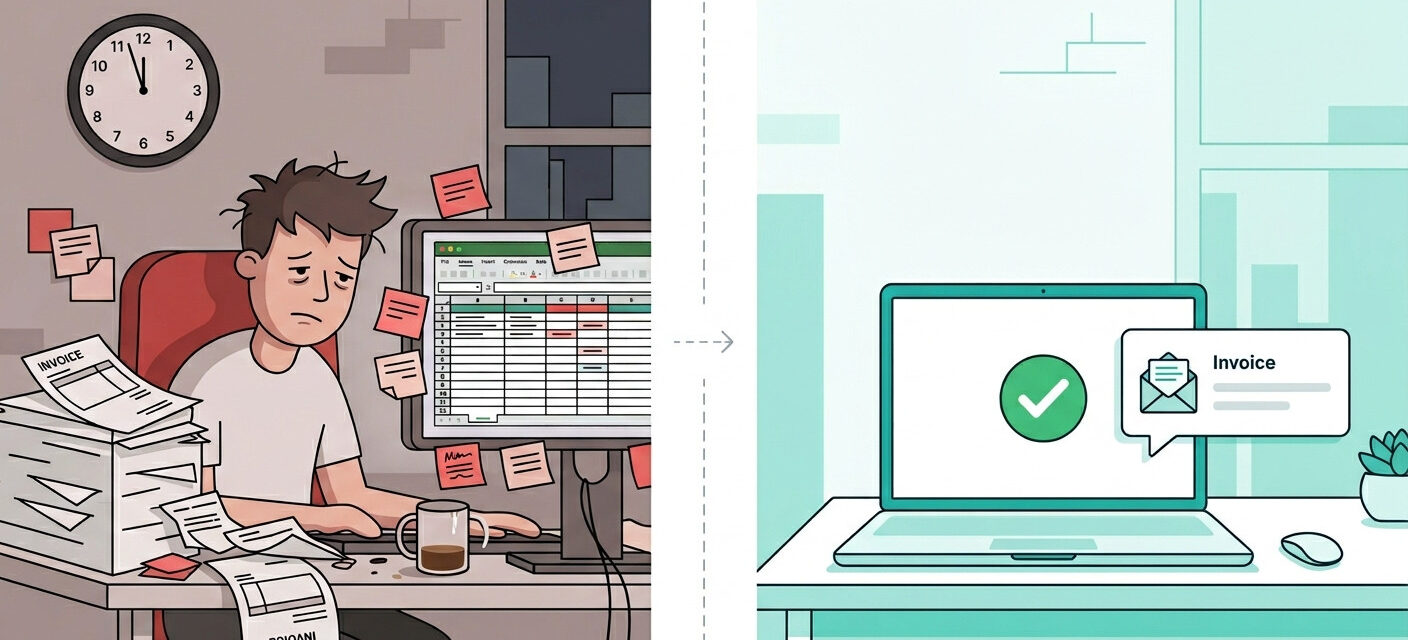
You finished the work. You just forgot to send the invoice. Again.
It happens more than anyone talks about. And it’s not a discipline problem — it’s a systems problem. Right now, 56% of U.S. small businesses are sitting on unpaid invoices, with the average outstanding balance hitting $17,500 per business. Not because their clients are bad people. Because the billing process is broken, slow, and built on manual effort that falls apart the moment you get busy.
Here’s what that actually costs: manual invoice processing runs $12.88–$19.83 per invoice in staff time, error correction, and approval overhead. If you’re sending 50 invoices a month, that’s close to $1,000 in hidden drag — before you even count the hours spent chasing late payments. The average small business spends $9,000 a year just following up on overdue bills.
That’s not a cash flow problem. That’s a workflow problem.
In this guide, you’ll learn exactly how to automate invoicing for your small business — from trigger to paid receipt — in under 15 minutes using no-code tools available in 2026. No developer. No expensive software stack. No steep learning curve.
By the end, you’ll have a working automated billing workflow you can deploy today, even if you’ve never built an automation before. We’re talking:
- A trigger-based invoice system that fires the moment a project is marked complete
- Auto-filled PDF invoices sent directly from your existing Gmail
- A smart payment reminder sequence that follows up for you — without sounding robotic
- A direct sync to your accounting software so your books reconcile in real time
This isn’t theory. It’s a no-code invoice automation blueprint built on tools real small businesses are using right now.
Pro-Tip: Before you build a single automation, spend 10 minutes auditing your current invoicing lag time — the gap between “work completed” and “invoice sent.” For most solopreneurs, it’s 2–4 days. That delay compounds across every client, every month. Closing it alone, before any automation is live, can recover 15–20% of outstanding receivables faster.
If manual work is already costing you more than you realize, you’re not alone — and you’re exactly who this guide is built for.
Table of Contents
What Does It Actually Mean to Automate Invoicing?
Invoice automation for small business means replacing every manual step between “work done” and “money received” with a connected system that runs on triggers — so invoices go out on time, reminders fire automatically, and your books reconcile without you touching a spreadsheet.
It’s not one feature inside a billing app. It’s a chain of six handoffs, each passing work to the next stage without you in the middle.
And if manual work is silently killing your profits, this is exactly where the bleeding starts.
Here’s what that chain actually looks like:
| Manual Step | What Automation Replaces |
|---|---|
| Remembering to create an invoice after a job | Trigger: Project marked complete → invoice draft generated automatically |
| Copy-pasting client details into a template | Template variable engine pulls client name, amount, and due date from your data source |
| Attaching and emailing a PDF manually | Automated delivery via Gmail or SMTP — sent the moment the draft is approved |
| Writing a follow-up email when payment is late | Reminder sequence fires on a schedule — polite, pre-written, already personalized |
| Manually checking your bank and updating records | Payment webhook detects the transaction and logs it in real time |
| Copying paid invoices into QuickBooks or Xero | Accounting sync creates the entry automatically, category tagged, books reconciled |
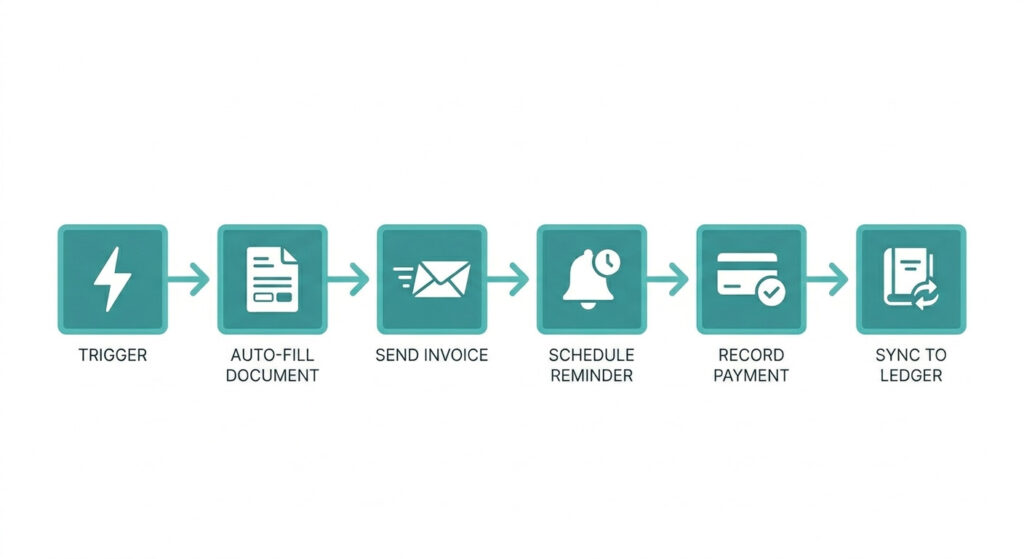
Each stage hands off cleanly to the next. You configure the rules once. The system executes them every time — whether you’re on a client call, traveling, or asleep.
This is what separates a real automated billing workflow from just “using invoicing software.” Software gives you a nicer form to fill in. Automation gives you a pipeline that runs itself.
The engine behind all of it is the trigger — a business event that tells your automation platform to act. A project status change in Notion. A new row in Google Sheets. A Stripe charge confirmed. That single signal kicks off every downstream step without you lifting a finger.
The other concept worth knowing: controlled automation. This means the system handles the predictable 80% — standard invoices, routine reminders, recurring clients, regular payments — while you stay in the loop for edge cases: unusual pricing, sensitive accounts, large invoice approvals, or disputes. That balance is what keeps your automation feeling professional rather than robotic.
And here’s the myth worth killing now: you do not need a developer, an IT budget, or enterprise software to build this. Tools like Make.com, n8n, and Zapier run on visual drag-and-drop interfaces. If you can use a spreadsheet, you can build this workflow. Most first-timers have it running in under an hour.
Pro-Tip: The fastest way to identify what to automate is to open a blank document and write down every step in your current invoicing process from memory — including the steps you sometimes skip. Any step that relies on you remembering to do it, or requires copying data from one place to another, is an automation target. Most solopreneurs find 5–7 of these steps in under 10 minutes. That list is your build brief.
The 5 Invoice Tasks You Should Automate First
Start with the five highest-ROI invoice automations: recurring invoice generation, new-client invoice creation, payment reminder sequences, payment-received logging, and accounting software sync. These five tasks cover the most repetitive work, carry the lowest risk, and deliver results fast enough to make the setup feel immediately worthwhile.
These are also the automations that the AI automations saving businesses 20+ hours a month consistently point to as the highest-impact starting points for small service businesses.
Here’s how to sequence them, with realistic time savings per week:
- Recurring invoice generation — saves ~1.5 hrs/week
Set a date-based trigger (e.g., 1st of the month) that creates and sends retainer or subscription invoices automatically. Zero manual action required for your regular clients. - New-client invoice creation — saves ~45 min/week
When a project is marked complete in Notion, Asana, or Trello, a Make.com scenario pulls client data, fills your Google Docs template, exports it as a PDF, and sends it — no copy-paste required. - Payment reminder sequences — saves ~1 hr/week
A Wait node pauses 7 days after invoice delivery, checks Stripe or your Google Sheet for payment status, and fires a polite follow-up automatically if the invoice is still open. Repeats at day 14 if needed. - Payment-received logging — saves ~30 min/week
A Stripe webhook detects incoming payments in real time, marks the invoice paid in your tracker, and sends the client a receipt — all without you opening a single app. - Accounting software sync — saves ~45 min/week
Once payment is confirmed, Make.com pushes a reconciled entry directly into QuickBooks, Xero, or FreshBooks — category tagged, client linked, ready for tax time.
Total estimated time reclaimed: ~4.5 hours per week. At a conservative $50/hour value, that’s over $11,000 returned to your year.
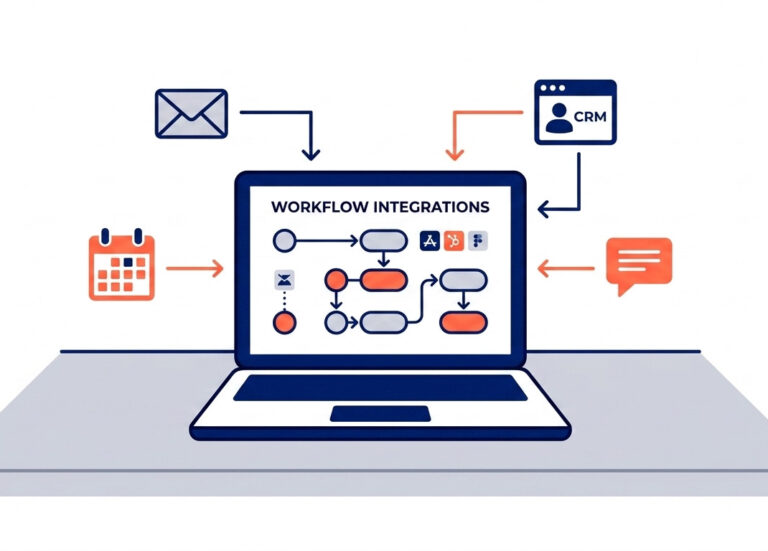
Here’s what the trigger map looks like in practice:
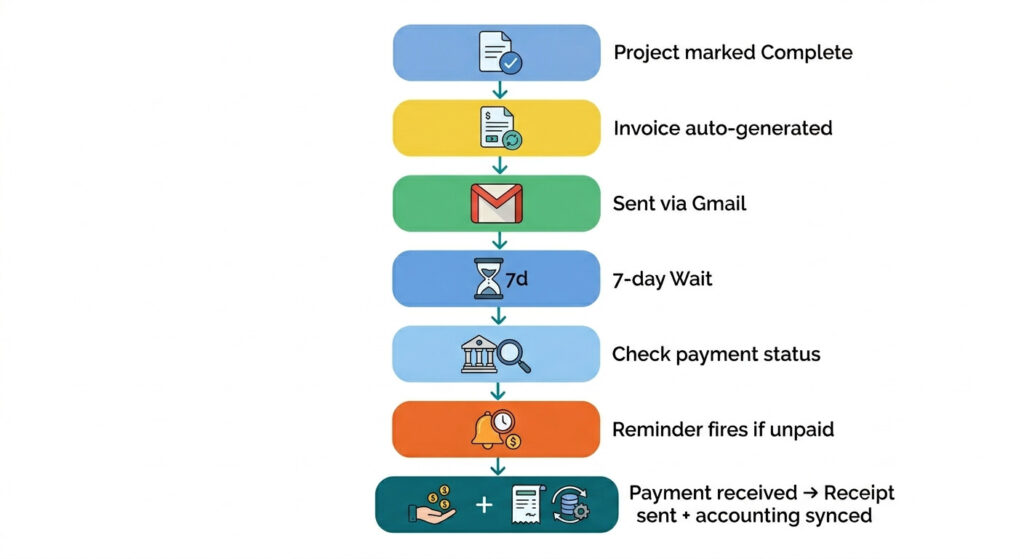
That entire chain runs inside a single Make.com scenario — connecting Notion or Asana, Google Docs, Gmail, Stripe, and QuickBooks without writing a line of code.
One task to hold back for now: don’t automate collections escalation or large/sensitive invoice approval. If an invoice involves unusual pricing, a first-time high-value client, or a billing dispute, that message needs a human behind it. A fast wrong automated email at a sensitive moment does more damage than a slow manual one.
Start with these five. Get them running. Then expand.
The 15-Minute Setup: Your No-Code Invoice Automation Workflow
You can build a no-code invoice automation workflow in 15 minutes using Make.com, Google Docs, and Gmail — no developer, no IT budget, no prior automation experience required.
This is the actual build. Five steps. One Make.com scenario. When you’re done, invoices go out automatically every time a project wraps up.
Here’s what each step takes:
| Step | Tool Used | Time to Configure |
|---|---|---|
| 1. Build your invoice template | Google Docs | 3 min |
| 2. Set your trigger | Make.com | 3 min |
| 3. Map data to template | Make.com + Google Docs | 4 min |
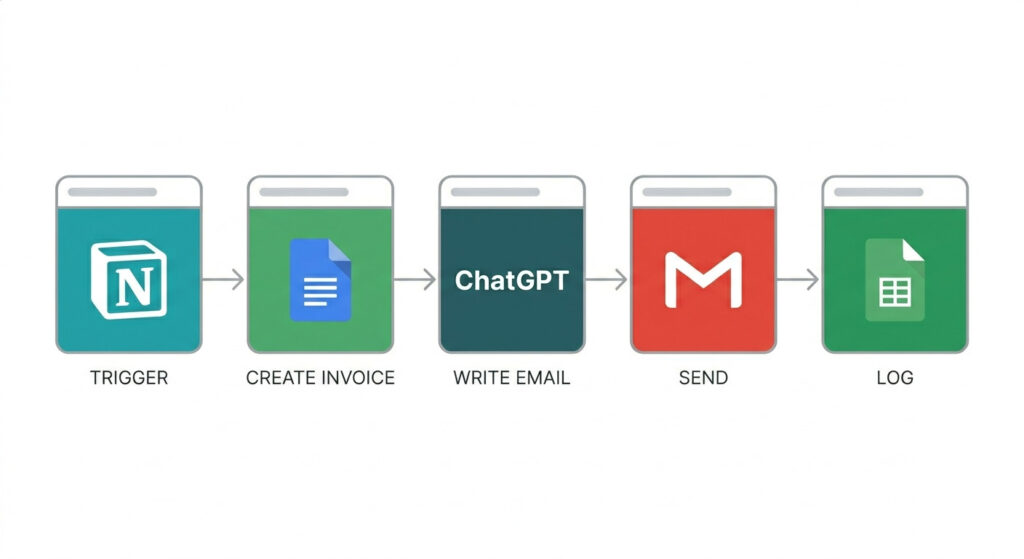
| 4. Auto-send with a personalized email | Gmail + ChatGPT API | 3 min |
| 5. Log the action + notify yourself | Google Sheets / Notion | 2 min |
Let’s walk through each one.
Step 1: Build your invoice template in Google Docs
Open a Google Doc and design a clean invoice layout. Wherever client-specific data belongs, drop in a template variable like {{client_name}}, {{project_name}}, {{project_name}}, {{amount}}, and {{due_date}}.
These placeholders are what Make.com will replace with real data when the automation runs. Spend 3 minutes here — this template is the only thing you’ll ever touch manually again.
Step 2: Set your trigger in Make.com
Log into Make.com and create a new scenario. Choose your trigger — the event that kicks everything off.
Your options:
- Google Sheets: New row added (e.g., when you log a completed project)
- Notion: Status field changed to “Complete” or “Ready to Invoice”
- Stripe: New charge created or subscription renewed
Pick whichever matches how you already track work. The trigger is your automation’s starting gun.
Step 3: Map your client data to the template
Add a Google Docs “Create a Document from a Template” module in Make.com. Connect it to your invoice template.
Map each variable field to the corresponding column in your spreadsheet or Notion database:
- {{client_name}} → Client Name column
- {{amount}} → Project Fee column
- {{due_date}} → auto-calculated (invoice date + 14 days)
Make.com then exports the filled document as a PDF — formatted, accurate, and ready to send. Zero copy-paste.
Step 4: Auto-send via Gmail with a ChatGPT-written email
Add a ChatGPT module to your Make.com scenario. Give it a prompt like: “Write a short, professional invoice email in my tone for {{client_name}} for the project {{project_name}}. Keep it warm but direct.”
ChatGPT generates a natural, personalized covering note — not a stiff template. Then a Gmail “Send an Email” module fires, attaches the PDF invoice, and delivers both to the client automatically.
As one creator who built this exact flow described it: “ChatGPT pulls in the project info and makes it sound natural, like something I’d actually write. It’s not just a template. It feels human.”
Step 5: Log the action and notify yourself
Add a final module to log the completed invoice in Google Sheets or Notion — client name, invoice number, amount, date sent.
Then add a push notification or Gmail confirmation back to yourself. You’ll know the invoice went out without having to check. The whole chain runs silently in the background while you’re on your next project.
Pro-Tip: Configure your Make.com scenario to run only on a set schedule — Mondays at 9am, for example — rather than triggering instantly on every project update. This creates a predictable weekly billing rhythm, prevents accidental duplicate sends if data changes mid-week, and keeps your cash flow timing consistent.
One rule before you go fully live: the parallel testing rule.
For the first week, run your automation and your manual process side by side. Let the scenario fire, then check the output against what you would have sent manually.
Verify the PDF rendered correctly. Check the email tone. Confirm the log entry is accurate. One week of parallel testing catches 90% of edge cases before they reach a client.
After that? Switch off the manual process entirely and let the system run.
Ready to skip the build entirely?
If you’d rather start with a done-for-you system, the AI Automation Blueprint includes pre-built Make.com scenarios for invoicing, client onboarding, lead capture, and more — ready to plug into your business in one afternoon.
Make.com vs. Other No-Code Tools for Invoice Automation
Make.com is the best no-code invoice automation tool for small businesses in 2026 because it combines multi-step scenario branching, a native ChatGPT module, and a free tier that handles most solo billing volumes — without the per-task pricing that makes Zapier expensive at scale.
That said, the right tool depends on how you work. Here’s the honest breakdown:
| Tool | Ease of Setup | AI Integration | Free Tier | Best For |
|---|---|---|---|---|
| Make.com | ★★★★☆ | Native ChatGPT module — no API config needed | Yes — 1,000 ops/month | Multi-step invoice workflows, solopreneurs, small teams |
| Zapier | ★★★★★ | Via third-party Zap — extra steps required | Very limited (5 Zaps) | Simple 2-step automations, beginners |
| n8n | ★★★☆☆ | Full API control, maximum flexibility | Self-hosted free | Technical solopreneurs who want ownership |
| QuickBooks Automation | ★★★★☆ | Built-in AI features within the platform | Paid plans only | Accounting-first businesses already in QuickBooks |
For most small service businesses and freelancers, Make.com is the default recommendation. Here’s why it pulls ahead in 2026 specifically:
- Native AI modules — Make.com now includes a built-in ChatGPT action block. You don’t need to configure an OpenAI API key separately, generate authentication tokens, or wire a webhook manually. Drop the module in, write your prompt, done.
- Scenario branching — A single Make.com scenario can handle conditional logic: skip the reminder if the invoice was paid, send a different template for retainer clients versus project clients, flag errors to a Slack channel. Zapier requires paid tiers and workarounds for the same logic.
- Visual drag-and-drop builder — The interface is built for non-technical users. Every module is a visual block. Connections are drawn with lines. There’s no YAML, no JSON configuration, no command line.
- Cost at volume — Zapier’s pricing scales per task. At 200+ invoices per month, costs climb fast. Make.com’s operation-based pricing keeps small business invoicing tools affordable as you grow.
The one scenario where you’d choose differently: if you’re already deeply embedded in QuickBooks and want zero-friction accounting automation without building a separate workflow, QuickBooks’ native automation handles the basics inside a tool you already pay for.
But for a full no-code invoice automation pipeline — template generation, personalized email, payment tracking, accounting sync — Make.com is the platform built for exactly this use case.
How to Automate Payment Reminders Without Being Annoying
The #1 reason small business owners resist automating their automated billing workflow isn’t the tech. It’s the fear: “What if my client gets a cold, robotic chaser and thinks less of me?”
That’s a valid concern — and the good news is, it’s completely avoidable with the right sequence design.
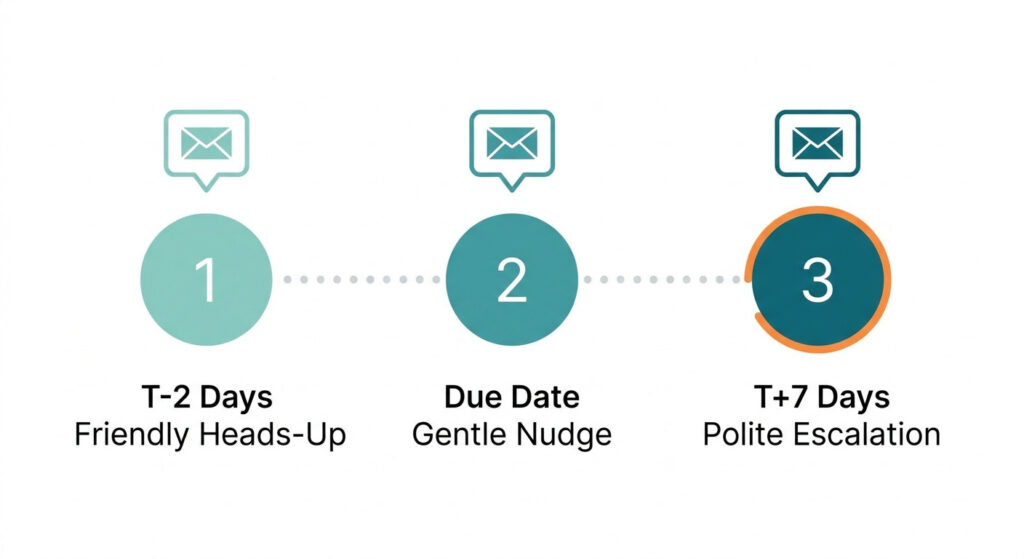
Automated payment reminders work best when you configure a 3-touch sequence — a polite pre-due reminder, a same-day nudge, and a 7-day overdue follow-up — with tone that escalates gradually and a human override in place for your most important relationships.
Here’s the exact cadence:
Touch 1 — T-2 Days Before Due Date: The Friendly Heads-Up
Tone: warm, helpful, zero pressure.
This isn’t a chaser. It’s a service. Most clients appreciate a gentle reminder that an invoice is coming due — especially if they batch payments weekly.
“Hi [Name], just a quick heads-up that invoice #INV-042 for [Project Name] ($[Amount]) is due this Friday. You can pay here: [Payment Link]. Let me know if you need anything from me.”
Touch 2 — T+0 on the Due Date: The Gentle Nudge
Tone: friendly but clear.
Short. Direct. No apology for sending it.
“Hi [Name], invoice #INV-042 for $[Amount] is due today. Here’s the payment link: [Link]. Thanks so much — I appreciate you.”
Touch 3 — T+7 Days Overdue: The Polite Escalation
Tone: professional, slightly firmer, still warm.
This is the message most people agonize over writing manually. When it’s automated and pre-written, you’ve removed the emotional tax entirely.
“Hi [Name], I wanted to follow up on invoice #INV-042 ($[Amount]), now 7 days past due. If there’s an issue with the invoice or you need an adjusted payment schedule, just reply here — happy to sort it out. Otherwise, the payment link is: [Link]. Thanks for your attention.”
How to build this in Make.com
The engine behind this sequence is Make.com’s Wait module — a conditional logic node that pauses the workflow for a set number of days and then checks a condition before firing the next action.
Here’s how the logic flows:
- Invoice sent → Wait 5 days → Check Google Sheets or Stripe: Is this invoice paid?
- Yes → Stop sequence entirely
- No → Send Touch 1 (pre-due reminder)
- Due date reached → Wait node fires Touch 2
- Wait 7 more days → Check payment status again
- Paid → Stop. Send a thank-you confirmation.
- Still unpaid → Fire Touch 3 escalation
Each check uses a Stripe webhook listener or a Google Sheets status column as its data source. The moment payment is registered, the sequence cancels — no accidental follow-ups after the client has already paid.
No awkward double-sends. No missed chasers. No forgotten follow-ups.
The override rule: who to exclude
Not every client should be in the automated sequence.
Exclude these accounts from automated reminders:
- Early payers — clients who consistently pay within 48 hours don’t need reminders, and getting one feels slightly insulting
- VIP or anchor clients — for your highest-value relationships, a personal email from you carries more weight and trust than a system-generated one
- Clients with active disputes or complaints — an automated chaser arriving mid-conflict escalates the problem immediately
In Make.com, you handle this with a simple filter module: check a “VIP” or “Exclude Reminders” column in your client spreadsheet before any reminder fires. If the column is marked Yes, the scenario branches and stops.
Pro-Tip: Use ChatGPT’s tone-calibration prompt inside your Make.com scenario to dynamically adjust reminder language based on client tier. For example: “Rewrite this invoice reminder for a VIP client — make it warmer, more personal, and remove any urgency language.” vs. “Rewrite for a standard account — keep it polite but clear.” One automation, two tones, zero manual editing.
The result? A fully automated billing workflow that follows up on every open invoice, on time, every time — while still sounding like it came from a person who actually knows the client.
And if you want to understand just how much how manual invoicing is costing you more than just time before you build this (LINK TO BE ADDED) — that context will make this setup feel even more worth the 15-minute investment.
Connecting Invoices to Your Accounting System Automatically
Most small business owners solve the invoicing problem and still spend 30–45 minutes a week doing something deeply tedious: manually copying paid invoices into QuickBooks, Xero, or FreshBooks.
That’s the accounting handoff gap. And it’s entirely fixable.
You can automatically sync paid invoices to QuickBooks, Xero, or FreshBooks using Make.com’s native accounting integrations — eliminating manual data entry and keeping your books reconciled in real time, the moment payment lands.
This is where your automated billing workflow stops being just an invoicing tool and becomes a full financial operation running on its own.
Here’s what the full post-payment chain looks like:
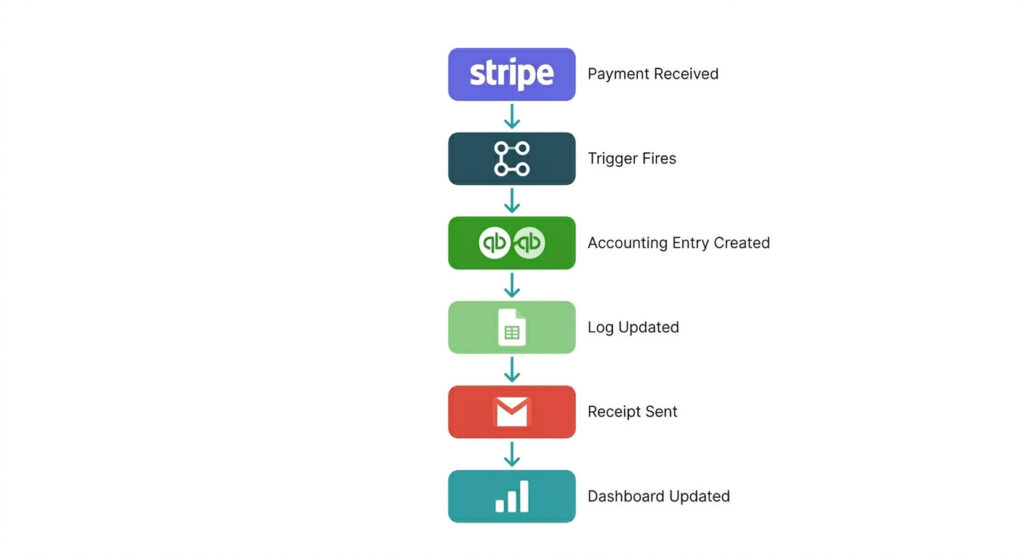
Each step fires automatically, in sequence, without you opening a single app. The Stripe webhook listener detects the incoming payment and kicks off the entire chain — all within seconds of the transaction clearing.
What this means for your books — practically
No more end-of-month “reconciliation Sundays.”
Every paid invoice is:
- Categorised correctly — service type, client, project, VAT/tax code, all mapped from your existing data structure
- Timestamped accurately — the accounting entry reflects the actual payment date, not the date you got around to logging it
- Linked to the client record — Make.com’s QuickBooks or Xero module pulls the client ID and attaches the payment to the right account automatically
- Stored with a full audit trail — every transaction is logged in both your accounting platform and your Google Sheets master tracker
Come tax season, your accountant opens QuickBooks and everything is already there — categorised, reconciled, matched. The manual catch-up work that used to cost hours (and sometimes accountant fees) simply doesn’t exist anymore.
This is one of the AI automations that free up 20+ hours every month that most small business owners don’t think to build first — but wish they had.
Add a Monday morning AR report — automatically
Here’s the layer most people skip, and it’s one of the highest-value additions to the workflow.
Configure a scheduled Make.com scenario to run every Monday at 8am. It pulls your accounts receivable aging data — all open invoices, sorted by days outstanding — from your Google Sheets tracker and emails a clean summary to your inbox before your week starts.
No pulling reports manually. No logging into three different platforms. You start every week knowing exactly who owes you money and how overdue each invoice is.
For a solo founder managing 10–30 active clients, this single automation replaces a weekly admin task that most people either skip or dread.
Pro-Tip: When configuring your Make.com → Xero or QuickBooks module, map a custom field called automation_source and set its value to “make_auto”. This tags every auto-created entry at the accounting level, making it instantly filterable in your books. If you ever need to audit, adjust, or reverse an automated entry, you can pull every single one in seconds — rather than hunting through months of manually-entered records to find what the system created vs. what you touched.
The full stack, summarised
Once this is live, your billing operation runs end-to-end without you:
| What Happens | How It’s Triggered | Tool Handling It |
|---|---|---|
| Invoice generated | Project marked complete | Make.com + Google Docs |
| Invoice sent to client | Immediately after generation | Gmail via Make.com |
| Payment reminder fires | 7 days if unpaid | Make.com Wait node |
| Payment received | Stripe webhook | Stripe → Make.com |
| Receipt sent to client | Immediately on payment | Gmail via Make.com |
| Accounting entry created | On payment confirmation | Make.com → QuickBooks/Xero |
| Books reconciled | Real time | QuickBooks/Xero native |
| AR aging report sent | Every Monday 8am | Make.com → Gmail |
That’s a complete small business invoicing operation — from trigger to reconciled books — running entirely on a free Make.com plan and tools you likely already use.
You’ve now seen the full framework.
The AI Automation Blueprint gives you every Make.com scenario in this guide — pre-built, tested, and ready to clone into your own account. Skip the configuration and plug directly into a proven system.
Frequently Asked Questions
How long does it take to automate invoicing for a small business?
Most small business owners can build a functional invoice automation workflow in 15–30 minutes — using Make.com, a Google Docs template, and Gmail — during a single focused work session.
The first week, you run the automation and your manual process side by side — the parallel testing rule — to catch any edge cases before they reach a real client.
After that? The system runs fully on autopilot. You’ll likely
What is the best no-code tool to automate invoicing in 2026?
Make.com is the best no-code invoice automation platform for small businesses in 2026, combining a native ChatGPT module, multi-step scenario logic, and a free tier of 1,000 operations per month — all without writing a single line of code.
What makes it the default choice:
– Native AI integration — the built-in ChatGPT action block writes personalised invoice emails without separate API configuration
– Multi-app connectivity — connects Google Docs, Stripe, Gmail, Notion, QuickBooks, and Xero inside a single scenario
– Visual scenario builder — drag-and-drop modules with no YAML, no JSON, no terminal
– Free tier that actually works — 1,000 operations per month covers most solo billing volumes at zero cost
For ultra-simple two-step automations — like “new invoice created → send email” — Zapier is a viable alternative and slightly easier for complete beginners. But the moment you need conditional logic, AI-generated content, or accounting sync in the same workflow, Make.com is the clear winner.
Can automated invoicing integrate with QuickBooks or Xero?
Yes — Make.com has native integrations with QuickBooks, Xero, and FreshBooks that automatically create payment records, reconcile invoices, and tag expense categories the moment a payment is received.
The chain looks like this: a Stripe webhook trigger detects the incoming payment → Make.com fires → the Xero “Create Invoice Payment” module logs the entry → the invoice is marked paid → books reconcile in real time.
No manual logging. No end-of-month catch-up. No accountant chasing you for records. Every transaction is timestamped, categorised, and stored as an
audit-ready financial record the moment it happens — which matters significantly come tax season.
For businesses not yet on Stripe, Make.com also integrates with PayPal, GoCardless, and Square as the payment trigger source.
Is automated billing safe for client relationships?
Automated billing is completely safe for client relationships when built with controlled automation — where the system handles predictable, routine invoices, and human judgment is preserved for sensitive, large, or first-time billing situations.
The key safeguards that keep it feeling human:
– 3-touch reminder sequence with tone that escalates gradually — never aggressive, never robotic
– ChatGPT tone-calibration inside your Make.com scenario dynamically adjusts language based on client tier or account sensitivity
– VIP override filter removes high-value or early-paying clients from automated sequences entirely
– Human approval gate for invoices above a set threshold (e.g., any invoice over $5,000 requires manual review before sending)
With these rules in place, the automation handles your standard billing volume — and over 40 hours per month can be reclaimed — without a single client noticing the system behind it.
Your clients experience the same warm, timely, professional communication they always have. The difference is that you aren’t the one producing it anymore.
You Now Have the Blueprint. Here’s What to Do Next.
Manual invoicing isn’t just inefficient — it’s a growth ceiling. Every hour you spend copy-pasting client details, chasing unpaid invoices, and manually syncing your accounting is an hour you’re not spending on work that actually moves your business forward.
That trade-off compounds silently. Week after week. Client after client.
In 2026, a fully automated billing workflow — from project-complete trigger to reconciled receipt — is a 15-minute build, not a 3-month IT project. The tools are free to start. The logic is visual. The result is a billing operation that runs itself.
Here’s everything you now have the framework to build:
- ✅ A Google Docs invoice template wired with variables that fill themselves
- ✅ A Make.com trigger that fires the moment a project wraps up
- ✅ A ChatGPT-generated email that sounds like you — sent automatically
- ✅ A 3-touch payment reminder sequence that follows up without you
- ✅ A Stripe webhook → Xero/QuickBooks sync that reconciles your books in real time
- ✅ A Monday morning AR report that tells you exactly who owes you money before your week starts
None of this requires a developer. None of it requires an enterprise software budget. It requires one focused afternoon and the willingness to stop doing manually what a system can do better.
The small businesses that are pulling ahead right now aren’t working harder. They’re running cleaner systems. Their invoices go out on time, every time. Their books are reconciled before their accountant asks. Their reminders fire automatically, and they never think about unpaid invoices until they check their dashboard on Monday morning.
That’s not a future state. That’s what this workflow delivers, starting this week.
Pro-Tip: Block a single 90-minute “automation build” session in your calendar this week — not to build everything, but to deploy just one scenario: the invoice generation trigger. Get one workflow live and tested before you build the next. A running system with one automation beats a perfect plan with none. Once the first scenario is live and you see it work, the next four take half the time.
You’ve seen the framework. You know the tools. The only thing left is to build it.
If you’d rather start with a done-for-you system instead of building from scratch, the AI Automation Blueprint gives you every Make.com scenario covered in this guide — pre-built, tested, and ready to clone into your account. Invoicing, payment reminders, accounting sync, client onboarding, lead capture — all of it, ready to plug into your business in one afternoon.
→ Yes, I Want the AI Automation Blueprint
Not ready for the Blueprint yet? Start free on Make.com today and deploy your first invoice automation scenario before your next project wraps up.