
Table of Contents
Small business owners know the drill: there’s always a mountain of administrative work that drains your team’s energy and productivity. Hours are spent on repetitive admin tasks—manual data entry, invoice processing, appointment scheduling, document organization, expense tracking, and email management. These tasks don’t require creativity or high-level decision-making; they just consume time that could be spent on more strategic work.
The problem is compounded when your team is small. There’s no dedicated administrative department to handle the workload. Instead, managers, business owners, and operations staff juggle admin responsibilities alongside their core jobs. The result? Burnout, errors, and missed efficiency opportunities.
The good news is that modern AI automation tools for administrative tasks have become affordable and accessible for small businesses. Unlike complex enterprise solutions, today’s platforms are designed specifically for teams that need to automate repetitive admin tasks without technical expertise. Many require no coding at all—just point-and-click setup that takes minutes, not months.
In 2026, automating administrative tasks has become a competitive necessity. Rising labor costs, increasing administrative complexity, and the need to do more with smaller teams mean that manual workflows are no longer viable. Smart small businesses are already reclaiming 10+ hours per week by automating their back-office operations.
This guide walks you through the best AI tools available for automating administrative tasks, examples from small businesses, and a practical roadmap for implementing automation in your own operations. By the end, you’ll have a clear action plan to streamline your admin functions and free up your team’s time for higher-value work.
What Is Automating Repetitive Admin Tasks?
Automating repetitive admin tasks means using software to handle manual, recurring administrative work without human intervention. These are back-office tasks that follow predictable, rule-based patterns—like copying data from one system to another, generating documents, processing invoices, scheduling appointments, or sending routine communications.
Examples of repetitive admin tasks:
- Manually entering customer/vendor data into spreadsheets or CRM systems
- Processing invoices and expense reports
- Scheduling appointments and meetings
- Preparing recurring reports
- Filing and organizing documents
- Sending appointment reminders and confirmation emails
- Data reconciliation and cleanup
- Transcribing meeting notes
- Managing employee timesheets
Why this matters for small businesses: Your team’s time is your most expensive resource. Administrative assistants, office managers, and team leaders spend 30–50% of their time on manual administrative work that could be automated. This directly translates to lost productivity and opportunity costs. Automating these functions frees your team to focus on strategic, revenue-supporting work while reducing errors and improving consistency.
The Hidden Cost of Manual Administrative Processes
Before investing in automation, it’s important to quantify what your current manual processes are actually costing you.
Time Drain and Labor Cost
Manual administrative tasks consume enormous amounts of employee time. Data entry alone takes up an average of 3–5 hours per week for administrative staff. When you add invoice processing, scheduling, document management, and report preparation, the total exceeds 15–20 hours per week for a small team.
The cost calculation is simple:
- Average salary for administrative staff: $40,000–$50,000 annually
- Hours spent on automatable tasks: 15–20 per week
- Percentage of salary dedicated to manual admin: 30–50%
- Annual cost: $12,000–$25,000 per administrative team member
If you have two administrative staff members, you’re spending $24,000–$50,000 annually on tasks that automation can handle.
Error Rates and Rework Costs
Manual data entry introduces errors at predictable rates: roughly 3–4% of entries contain mistakes. These errors cascade through your business:
- A mistyped invoice number delays payment processing
- Incorrect vendor information causes payment issues
- Duplicate customer records create confusion
- Miscalculated expenses lead to reporting inaccuracies
Studies show that automated administrative processes reduce error rates to below 0.5%, a dramatic improvement.
Example: Accounting firms report that manual invoice processing averages 8–12 hours per 100 invoices, with a 3% error rate. AI-powered invoice capture processes the same 100 invoices in 30 minutes with <0.5% errors.
Process Bottlenecks and Delayed Decision-Making
Poor administrative processes create visibility gaps. Without real-time tracking, you don’t know:
- How many invoices are pending approval
- What appointments are scheduled versus no-shows
- Which expense reports are waiting for review
- The status of time-sensitive administrative items
This lack of visibility delays decisions and prevents proactive management.
Benefits of Automating Repetitive Admin Tasks for Small Teams
Recover 10+ Hours Per Week Per Administrative Staff Member
The most immediate benefit of automating administrative tasks is reclaiming time. Administrative professionals spend 4–8 hours weekly on tasks that could be automated—data entry, document preparation, scheduling coordination, and email management.
For a 5-person admin team, this is equivalent to gaining one full-time employee’s worth of capacity without the hiring and training costs.
Reduce Administrative Errors by Up to 90%
Manual administrative processes are error-prone. Data entry mistakes, forgotten follow-ups, misfiled documents, and miscalculated reports create problems downstream. Automating administrative tasks removes the human error factor.
Improvements:
- Invoice error rates drop from 3–4% to <0.5%
- Appointment no-shows decrease by 30–40% with automated reminders
- Expense categorization accuracy improves by 50%+
- Document retrieval time decreases by 60%+
Lower Administrative Overhead Without Hiring
Instead of hiring additional administrative staff to handle growing workload, automation allows existing staff to manage proportionally more work. Organizations implementing administrative automation save 30–50% on administrative labor costs.
Example: A 20-person company spending $120,000 annually on administrative staffing reduced costs to $60,000–$84,000 by automating invoice processing, scheduling, and document management—without laying off staff, but by reassigning them to higher-value administrative functions.
Improve Speed of Administrative Processes
Manual administrative processes introduce delays. An invoice sits awaiting data entry, an expense report waits for categorization, or a customer contact needs manual entry into the CRM. Automation operates 24/7 without delay.
Documented improvements:
- Invoice-to-payment cycle time: reduced by 50–70%
- Expense report processing: reduced from 3–5 days to same-day
- Meeting scheduling: reduced from back-and-forth emails to instant scheduling
- Document filing: reduced from days to immediate
Improve Data Quality and Consistency
When administrative processes are manual, data quality is inconsistent. Different team members follow different standards, leading to incomplete records, spelling variations, and formatting inconsistencies. Automation enforces consistent standards across all administrative data.
Enable Better Administrative Insights
Automated systems track administrative metrics automatically, enabling data-driven optimization. You can see which administrative processes take the longest, which have the highest error rates, and where bottlenecks occur. This visibility enables continuous improvement.
Best AI Tools to Automate Repetitive Admin Tasks for Small Businesses
Small businesses have multiple automation options. The key is choosing tools that match your specific administrative workflows and budget.
Category 1: All-in-One Administrative Automation Platforms
These platforms handle multiple administrative automation tasks in one place, with visual builders that require zero coding.
Zapier
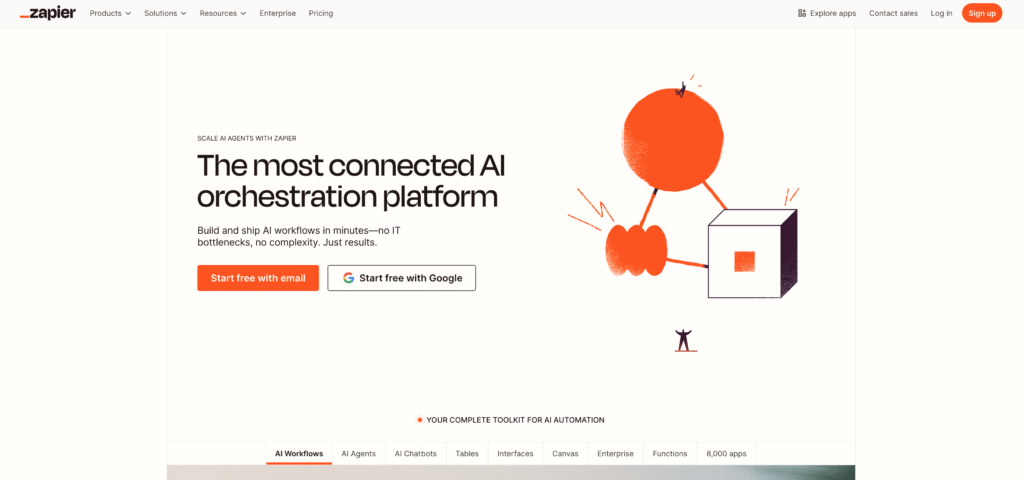
Zapier is the most popular automation platform for small business administrative tasks, with over 7,000 app integrations. It’s ideal for automating routine administrative processes like form submission → database entry, expense report → accounting system, or reminder email sequences.
Best for: Connecting different administrative apps—automating data movement between forms, spreadsheets, CRM systems, accounting software, and email platforms.
Cost: Free tier (limited); Professional starts at $19.99/month.
Standout features for admin automation:
- Massive app library (integrates with most business tools)
- Visual Zap builder (point-and-click workflow creation)
- Conditional logic for routing administrative tasks
- Cost-effective scaling based on automation volume
Common administrative use cases:
- Web form submission → Contact database/CRM
- Invoice received → Accounting system entry
- Expense submission form → Expense tracking spreadsheet
- Email received → Action item in project management system
- Meeting scheduled → Calendar update across multiple platforms
Example from research:
An educational startup automated intake form submissions directly to their CRM system, eliminating 5 minutes per form × 10 submissions = 50 minutes per week of manual data entry work.
Make (formerly Integromat)
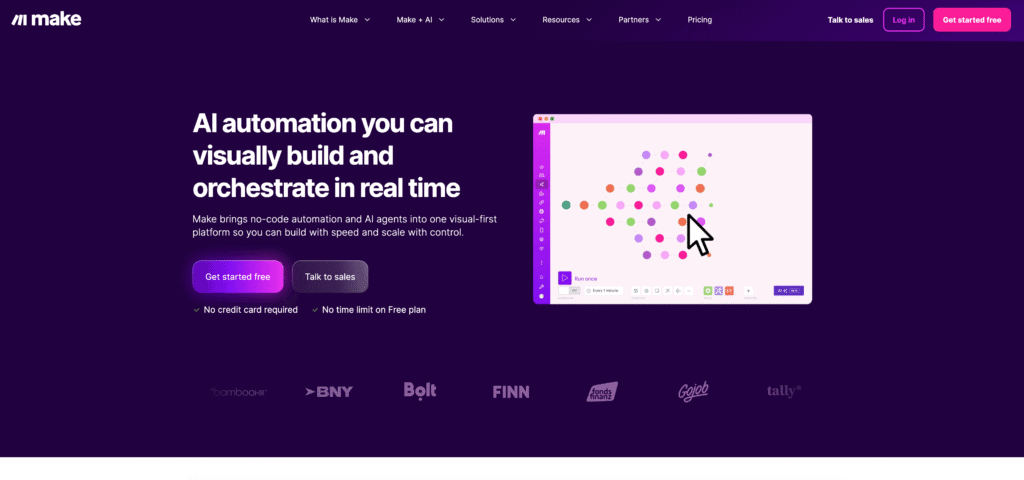
Make is for teams that have outgrown simple automation and need more control over complex administrative workflows. Its visual flowchart-style builder excels at multi-step administrative processes with conditional logic and error handling.
Best for: Small operations teams automating complex administrative workflows like multi-approval invoice processes, conditional routing of administrative tasks, or data transformation between systems.
Cost: Starts at $9/month; scales based on usage.
Standout features for admin:
- Visual flowchart builder (superior for complex administrative sequences)
- Advanced data transformation and routing
- Error handling and retry logic
- Strong debugging tools
Administrative use cases:
- Multi-step invoice approval workflows
- Expense report review and categorization
- Employee onboarding task sequences
- Document organization and filing by criteria
Microsoft Power Automate
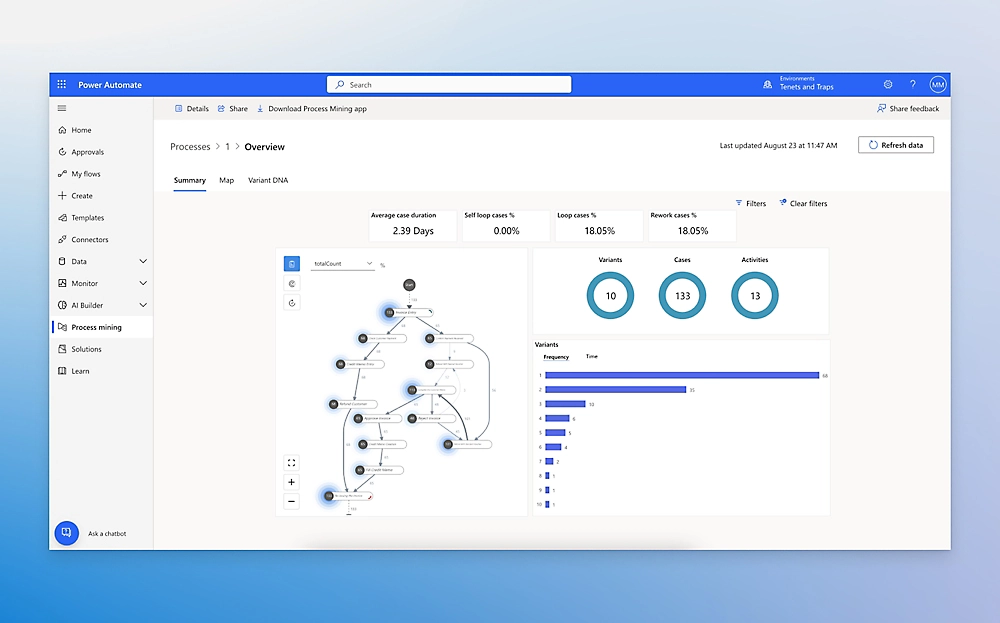
For businesses already using Microsoft 365 (Outlook, Excel, SharePoint, Teams), Power Automate is a natural choice for automating administrative tasks. It integrates seamlessly with the Microsoft ecosystem.
Best for: Organizations heavily invested in Microsoft 365, needing deep integration with Outlook email, Excel spreadsheets, and SharePoint documents.
Cost: Varies; often included with Microsoft 365 subscriptions or starts around $15/month.
Standout features for admin:
- Native Microsoft 365 integration
- Email-triggered automation (automated from Outlook)
- Excel automation (auto-calculations, data updates)
- SharePoint document automation
Administrative use cases:
- Email attachment → Excel data entry
- Excel rows → Outlook calendar items
- Meeting invites → Task creation
- Document → SharePoint filing with categorization
n8n
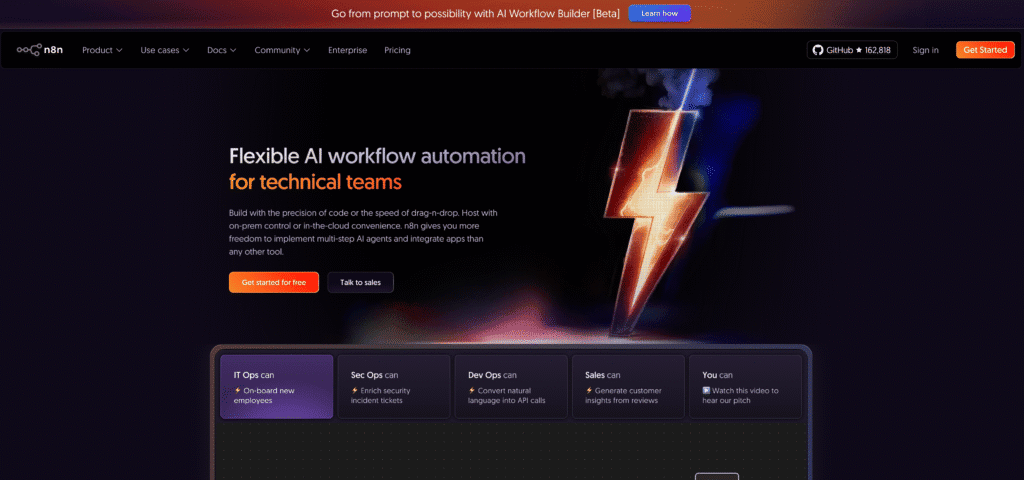
n8n offer AI-powered automation agents that can handle more complex administrative logic without explicit step-by-step programming.
Best for: Teams wanting AI to make decisions about administrative routing, categorization, and escalation.
Key features:
- AI agents that learn from administrative data patterns
- Natural language instruction
- Conversational automation setup
Category 2: Invoice and Accounts Payable Automation
Dedicated AP automation platforms are essential for businesses processing high volumes of invoices.
DOKKA (AI Invoice Automation)
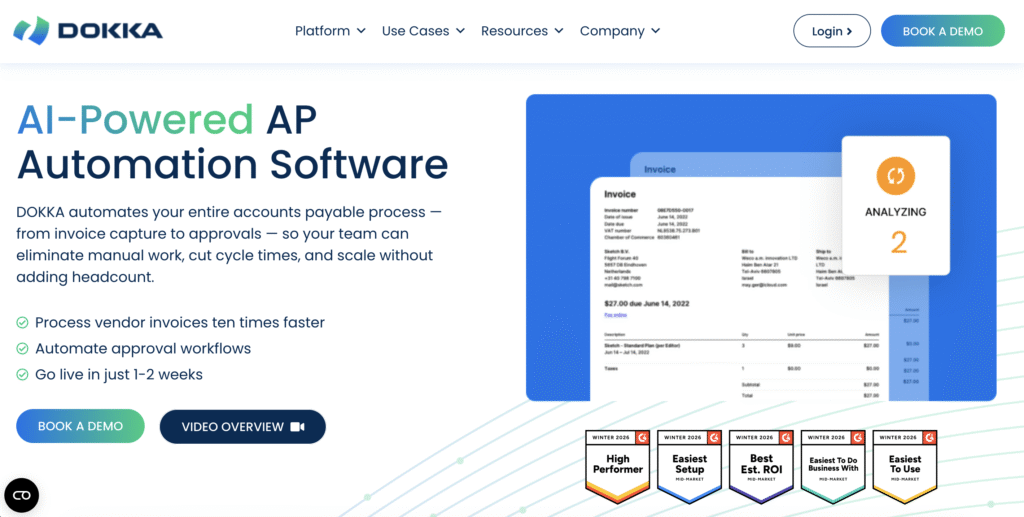
DOKKA specializes in automating invoice capture and processing using AI-powered OCR. It automatically extracts data from invoices and integrates with accounting systems.
Best for: Small businesses receiving 50+ invoices monthly that currently require manual data entry.
Cost: Quote-based; designed for SMB budgets.
Key features for admin automation:
- AI invoice data extraction (no templates required)
- Automated approval workflow routing
- Integration with accounting systems (QuickBooks, Xero)
- Exception handling for unusual invoice formats
Example:
A biotechnology company eliminated 1,750 hours of annual accounts payable administrative work using DOKKA, allowing AP staff to focus on vendor management and strategic finance tasks instead of data entry.
Rillion (Invoice Processing Automation)
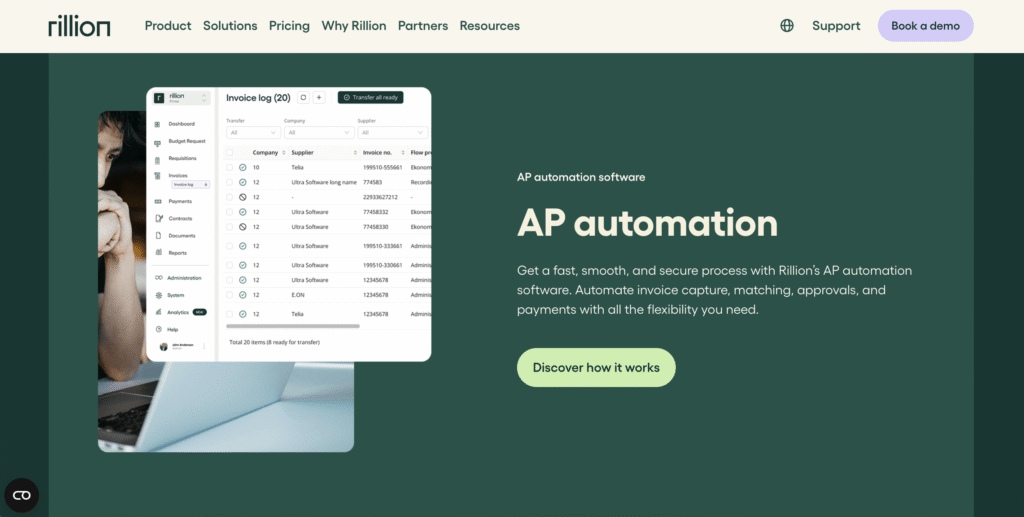
Rillion combines AI invoice capture, data extraction, and reconciliation specifically for administrative teams processing invoices.
Best for: Businesses automating end-to-end invoice processing from receipt to reconciliation.
Cost: Quote-based.
Key features:
- High-accuracy invoice data capture (>90%)
- Self-learning AI that improves with each invoice
- Automated reconciliation against POs
- ERP integration
QuickBooks Online (with Intuit Assist)

QuickBooks integrates invoice automation, expense categorization, and payment reminders into its accounting platform. Its AI agent automatically categorizes transactions and reconciles accounts.
Best for: Small businesses using QuickBooks for accounting seeking integrated administrative automation.
Cost: Starts at approximately $30/month.
Automation features:
- Automatic transaction categorization
- Automated bank reconciliation
- AI-powered invoice reminder generation
- Expense tracking automation
Tipalti
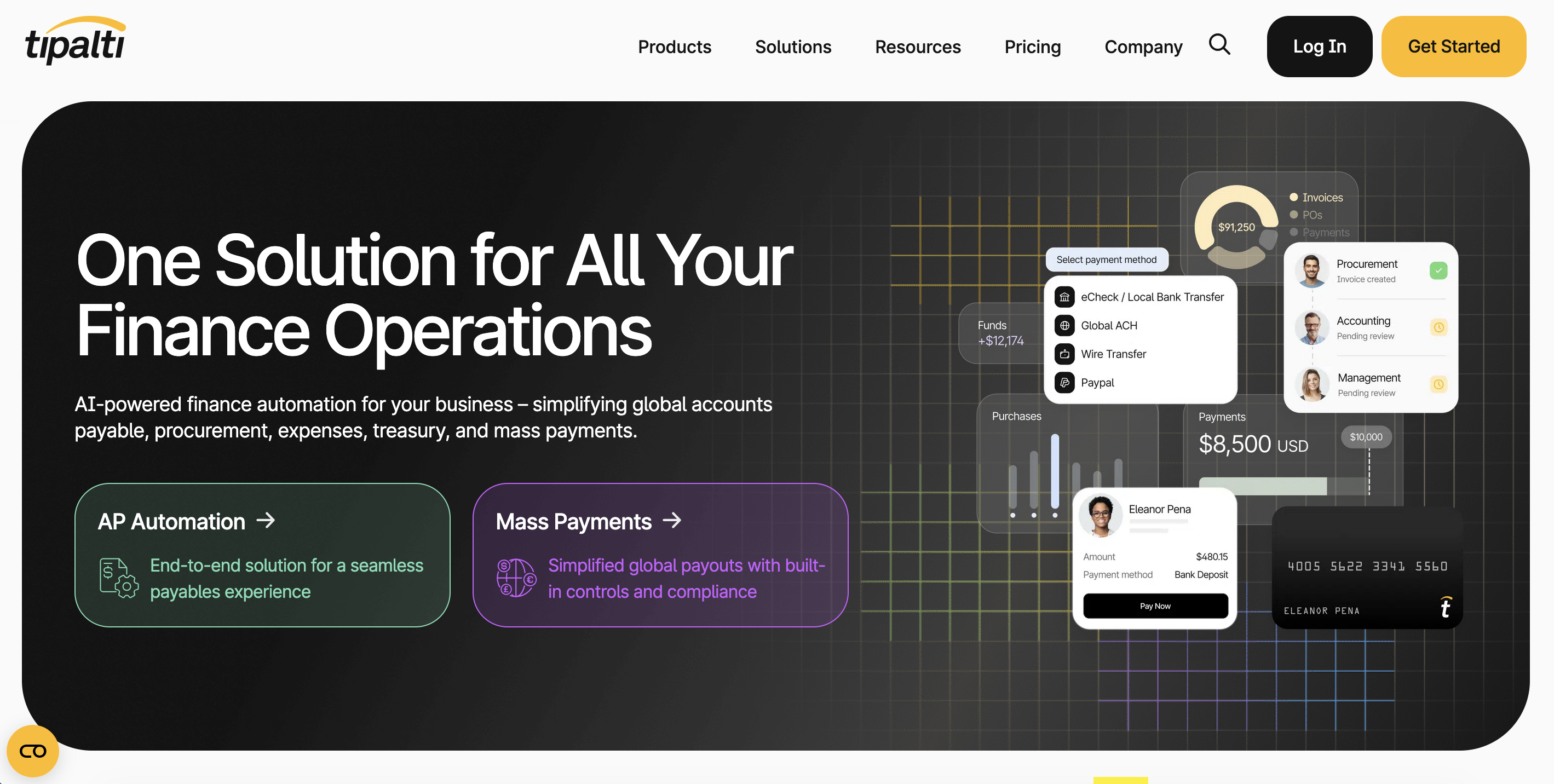
Tipalti specializes in accounts payable automation, including vendor management, invoice processing, and payment automation.
Best for: Small businesses wanting to fully automate their accounts payable process end-to-end.
Category 3: Scheduling and Calendar Automation
Calendly
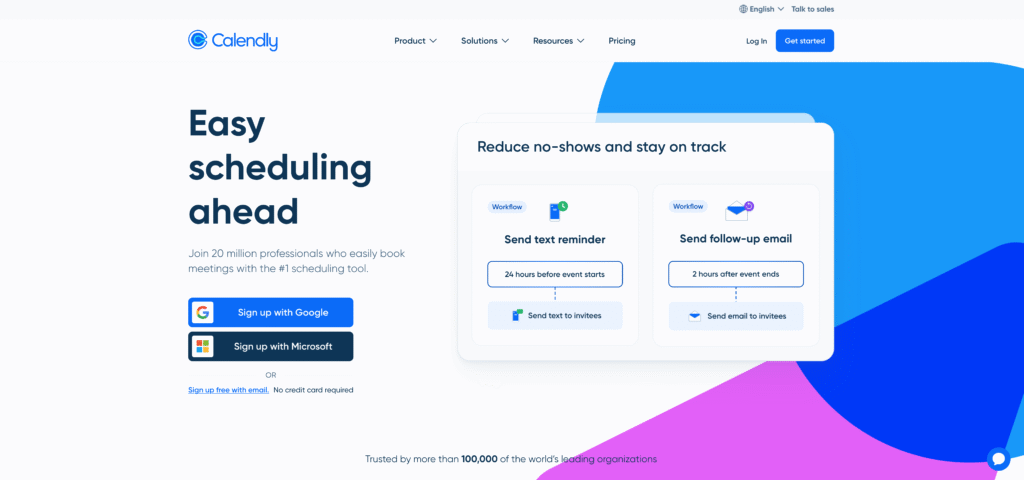
Calendly automates appointment scheduling. When integrated with Zapier, it can trigger downstream automation like sending confirmations, updating CRMs, or creating calendar events in other systems.
Best for: Automating appointment scheduling administrative tasks.
Cost: Free tier available; Professional starts at $12/month.
Automation features:
- Automated meeting confirmations and reminders
- Automatic calendar synchronization
- Integration with CRM and email systems
- Automated cancellation/rescheduling workflows
Example: A service business set up automated appointment reminders via Zapier + Calendly, reducing no-shows by 35% and freeing administrative staff from sending manual reminder emails.
Acuity Scheduling

Acuity Scheduling combines appointment booking with automated confirmations, reminders, and payment processing.
Best for: Service-based businesses automating their appointment administration.
Learn more about the AI Scheduling Tools that you can use to grow your business
Category 4: Time Tracking and Payroll Administration
Clockify
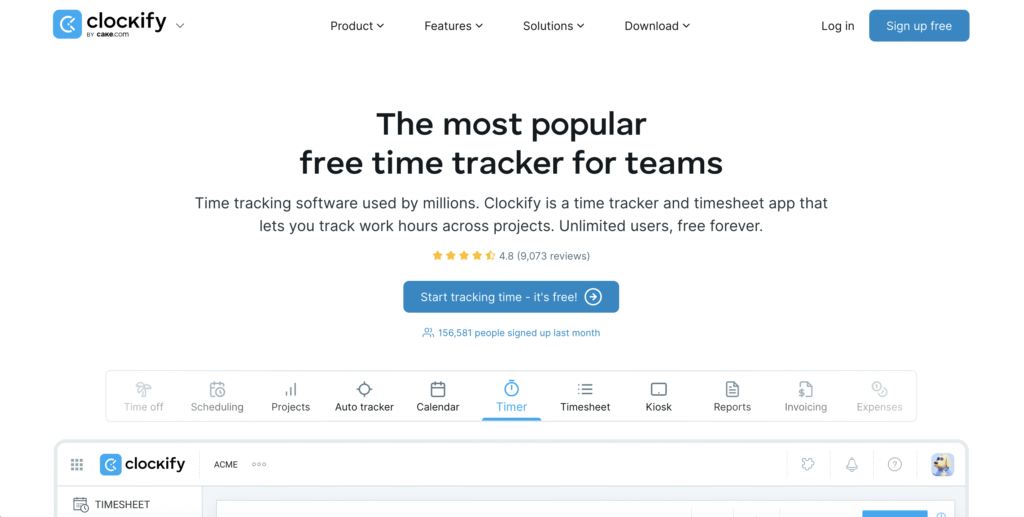
Clockify automates employee time tracking and generates timesheets automatically.
Best for: Small businesses with hourly employees needing automated time tracking and payroll administration.
Cost: Free tier available; Premium starts around $9/month per user.
Features:
- Automated timesheet generation
- Payroll-ready reporting
- Project and task-based time allocation
- Approval workflow automation
QuickBooks Time
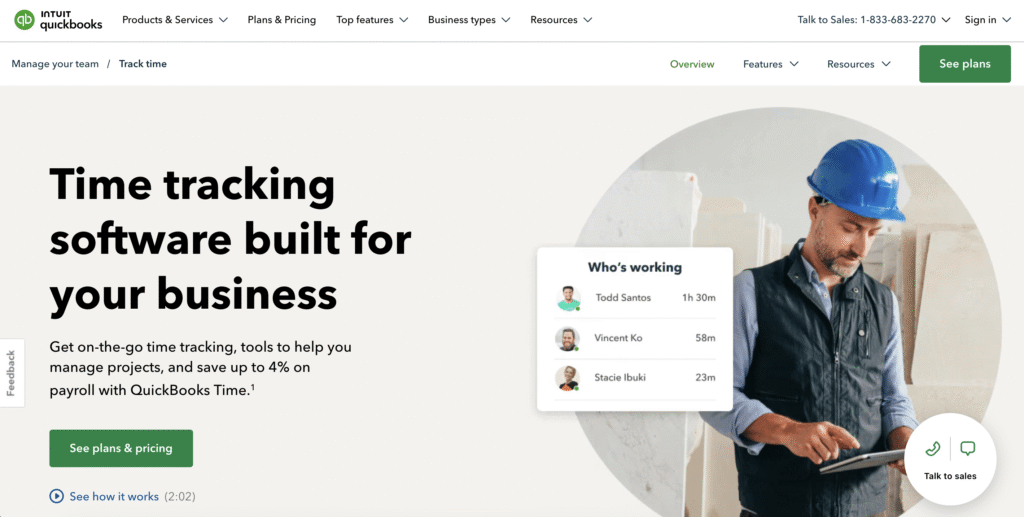
QuickBooks Time integrates with QuickBooks accounting, automating time entry, timesheet approval, and payroll feed.
Best for: Businesses using QuickBooks seeking integrated payroll administration automation.
Category 5: Document Management and Filing Automation
Notion
Notion can automate document organization and administrative database management using templates and automated tagging.
Best for: Teams wanting to automate document filing and administrative knowledge organization.
Cost: Free tier available; Professional starts at $10/month.
Features:
- Template-based document creation
- Automated tagging and categorization
- Administrative database automation
- Workspace organization automation
Microsoft SharePoint (with Power Automate)
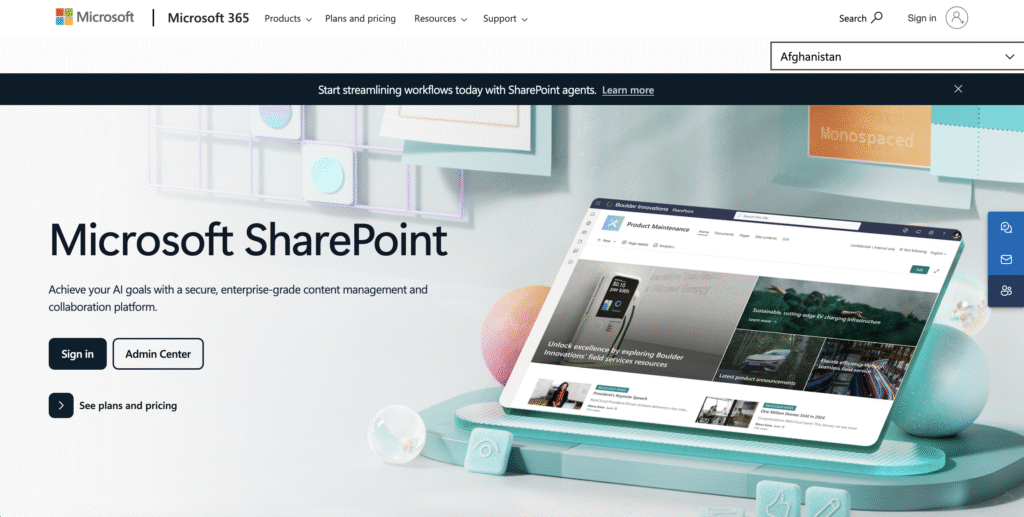
SharePoint combined with Power Automate automates document filing, version control, and administrative document workflows.
Best for: Organizations using Microsoft 365 needing automated document management.
Features:
- Automated document filing based on metadata
- Version control automation
- Approval workflow automation
- Archive automation
Category 6: Meeting Notes and Transcription Automation
Otter.ai
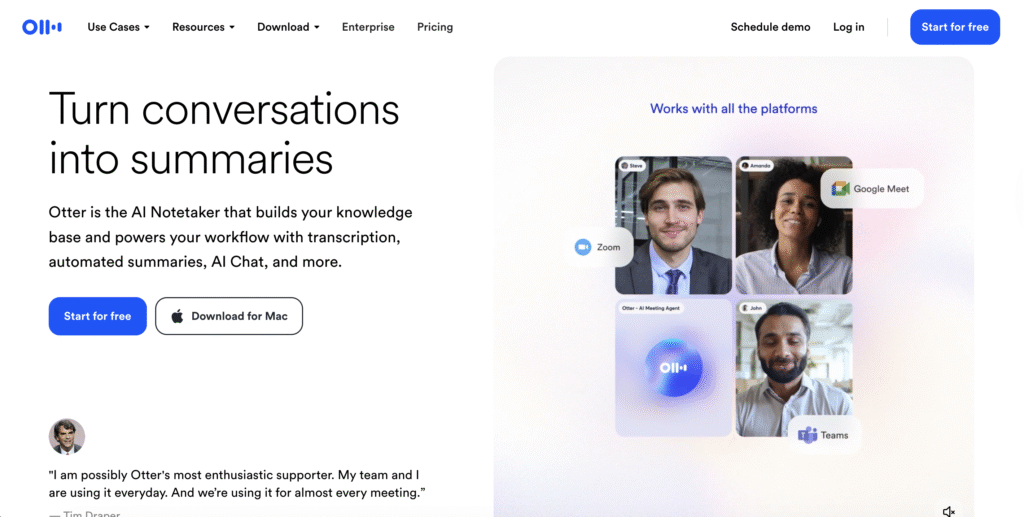
Otter.ai automatically records, transcribes, and summarizes meetings. It identifies action items and assigns them to team members.
Best for: Automating meeting note-taking and administrative action item tracking.
Cost: Free tier available; Premium starts at $10/month.
Features:
- Automatic meeting transcription
- Action item extraction and assignment
- Integration with Zoom, Teams, Google Meet
- Searchable meeting history
Example: A small consulting firm uses Otter.ai to automatically transcribe client calls and extract action items, eliminating 4 hours per week of manual note-taking administrative work.
Fireflies.ai
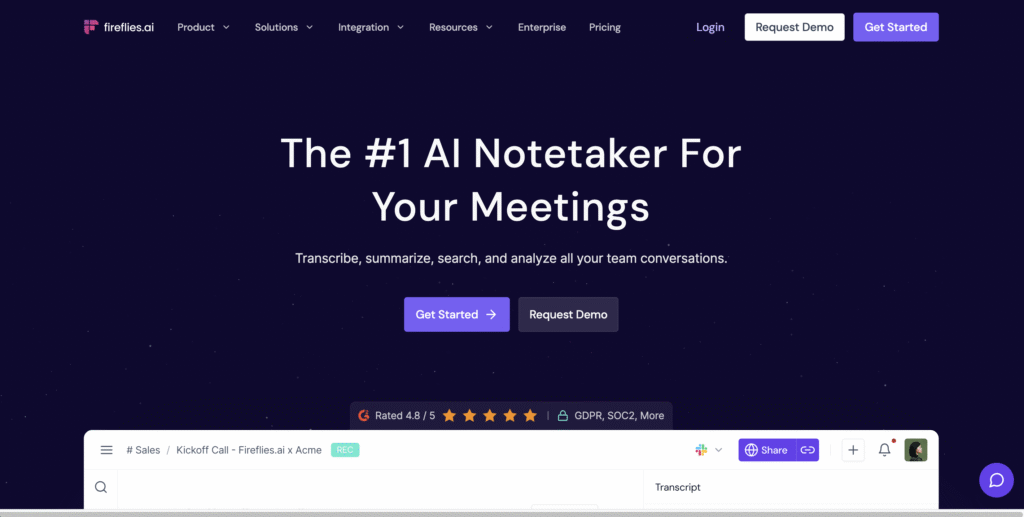
Similar to Otter.ai, Fireflies.ai transcribes meetings and updates administrative records (CRM, task systems) automatically with extracted information.
Best for: Teams wanting meeting transcription tied to CRM and administrative system updates.
Category 7: Email Management and Administrative Correspondence
Pathopt AI
Pathopt automates email management, draft generation, and administrative correspondence. It learns your communication style and drafts responses to routine emails.
Best for: Teams overwhelmed with administrative emails needing help with routine correspondence.
Features:
- Automated email categorization
- Draft generation for routine responses
- Email prioritization
- Administrative inbox management
Comparison: Manual vs. Automated Administrative Processes for Small Businesses
| Administrative Aspect | Manual Process | Automated Process |
|---|---|---|
| Invoice processing time | 8–12 minutes per invoice | 30–60 seconds per invoice |
| Data entry error rate | 3–4% | <0.5% |
| Invoice approval cycle | 3–7 days | Same-day or 24-hour |
| Appointment scheduling | 5–10 minutes per appointment | Instant (customer self-schedules) |
| Meeting note-taking | 30–60 minutes per meeting | Automatic transcription (5–10 minutes review) |
| Expense categorization | 2–5 minutes per expense | 10–30 seconds per expense |
| Document filing time | 3–5 minutes per document | Automatic or <30 seconds |
| Scheduling conflicts | Manual review required | Automated conflict detection |
| Administrative staff time | 30–50% of workday | 10–15% of workday |
| Cost per administrative transaction | $5–15 (labor) | $0.01–0.50 (software) |
| Administrative visibility | Poor (manual tracking) | Real-time dashboards |
Implementation: Step-by-Step Guide to Automate Your Repetitive Admin Tasks
Step 1: Audit Your Administrative Processes (Week 1)
Before selecting tools, understand where your administrative team actually spends time. Track administrative tasks for one week.
How to do it:
- Ask administrative staff to log their hours by category: data entry, scheduling, document management, email management, invoice processing, expense tracking, meeting notes, reporting, etc.
- Identify the top 3–5 administrative tasks consuming the most time
- Prioritize tasks that are repetitive, rule-based, and don’t require complex judgment
Look for these characteristics:
- Done multiple times daily or weekly
- Follows the same process every time
- Involves copying/pasting data between systems
- Requires no human creativity or complex decision-making
- Administrative in nature (supporting business operations, not revenue-generating)
Example: A 10-person professional services firm discovered:
- Invoice processing: 4 hours/week (manual data entry)
- Appointment scheduling: 3 hours/week (back-and-forth emails)
- Expense report processing: 2 hours/week (categorization and entry)
- Meeting notes: 2 hours/week (manual transcription)
- Total: 11 hours/week of automatable administrative work
Step 2: Choose Your First Administrative Automation Target (Week 2)
Pick one high-impact administrative workflow that will show quick wins and validate the approach.
Selection criteria:
- Time savings: Will save at least 3–5 hours/week
- Error impact: Currently causing visible errors or rework
- Simplicity: Straightforward, rule-based process
- Tool availability: A readily available tool can automate it
Good first administrative automation projects:
- Invoice data entry → Accounting system
- Appointment scheduling form → Calendar + CRM
- Expense report submission → Expense tracking system
- Meeting attendee list → Contact database
- Weekly/monthly reporting automation
Most recommended starting point: Invoice processing automation (if you process invoices) or appointment scheduling automation. Both show immediate ROI and are straightforward to implement.
Step 3: Select the Right Administrative Automation Tool (Week 2–3)
Match your administrative process to the right platform.
Decision matrix:
- Multi-app data movement (integrations)? → Zapier or Make
- Invoice/accounts payable automation? → DOKKA, Rillion, or QuickBooks
- Appointment scheduling? → Calendly + Zapier or Acuity Scheduling
- Meeting transcription? → Otter.ai or Fireflies.ai
- Time tracking/payroll? → Clockify or QuickBooks Time
- Document management? → Notion or SharePoint + Power Automate
- Heavy Microsoft 365 user? → Power Automate
- Email/communication automation? → Pathopt or native Gmail/Outlook rules
Pro tip: Most platforms offer free trials. Set up your first administrative automation on a free tier before committing to a paid plan.
Step 4: Build and Test Your First Administrative Automation (Week 3–4)
Build a simple version of your automated workflow using your chosen platform.
For Zapier example: Automating invoice submission → accounting entry:
- Create a Zap: Log into Zapier and create a new automation.
- Select the trigger: Choose “New Email Attachment” or “New Form Submission” (however invoices arrive).
- Add action 1: Extract data from email using AI or structured parsing.
- Add action 2: Create entry in your accounting system (QuickBooks, Xero, etc.) with extracted data.
- Map fields: Match extracted data to accounting fields (invoice number, vendor name, amount, date, etc.).
- Set exception handling: Route invoices with missing data to manual review queue.
- Test: Submit a test invoice and verify it appears in accounting system correctly.
- Publish: Turn on the Zap and monitor for the first 3–5 days.
For administrative automation best practices:
- Start simple; don’t build complex logic on your first try
- Test with a small subset of data first (don’t process 500 invoices on day one)
- Set up an exception/error queue for items that don’t fit the standard pattern
- Monitor results daily for the first week to catch unexpected issues
Step 5: Measure Results and Expand to Additional Admin Tasks (Week 5+)
After 2–4 weeks of running your first administrative automation, measure the impact.
Metrics to track:
- Time saved: Hours per week freed up
- Error reduction: Fewer manual corrections needed
- Processing speed: Days/hours reduction in cycle time
- Administrative staff feedback: Easier workflows? Better job satisfaction?
Calculate ROI:
Simple ROI formula: (Annual time savings × employee hourly rate) − (Tool cost) = Annual ROI
Example:
- Administrative automation saves 4 hours/week
- Administrative staff hourly rate: $28
- Annual time saved: 4 hours × 52 weeks = 208 hours
- Annual value: 208 × $28 = $5,840
- Tool cost: Zapier at $20/month = $240/year
- Net annual ROI: $5,840 − $240 = $5,600 (2,333% return)
Once successful, scale to your second and third highest-impact administrative workflows.
Administrative Use Cases by Department
Finance and Accounting Administration
Repetitive administrative tasks: Invoice data entry, expense categorization, reconciliation, payment reminders, vendor record management
Best automation:
- AI invoice capture (eliminating manual data entry)
- Automated expense categorization
- Automated payment reminders and follow-ups
- Bank statement reconciliation
- Vendor master file updates
Tools: DOKKA, Rillion, QuickBooks, Tipalti, Make, Zapier
Result: Invoice processing cost reduction from $12.88 per invoice to $2.78 (78% savings). If you process 200 invoices/month, that’s $24,000+ annual savings in administrative labor.
Administrative and Scheduling
Repetitive administrative tasks: Appointment scheduling, meeting coordination, calendar management, scheduling conflict resolution, reminder emails
Best automation:
- Automated appointment booking from website/form
- Automated appointment reminders (24 hours and 1 hour before)
- Calendar synchronization across platforms
- Meeting room reservations
- No-show follow-ups
Tools: Calendly, Acuity Scheduling, Zapier, Outlook/Google Calendar automation
Result: Automated appointment reminders reduce no-shows by 30–40% and eliminate 3–5 hours/week of administrative scheduling work.
Human Resources Administration
Repetitive administrative tasks: Employee onboarding documentation, timesheet processing, payroll data entry, leave request approvals, contract preparation
Best automation:
- Automated timesheet generation from time tracking
- Employee onboarding document delivery and tracking
- Leave request workflow automation
- Payroll data transfer to payment systems
- Contract template generation and storage
Tools: Clockify, QuickBooks Time, Power Automate, Zapier, Notion
Result: Automated employee onboarding reduces administrative burden and improves consistency across all new hires.
Operations and Back-Office Administration
Repetitive administrative tasks: Document filing, data entry from forms, report generation, administrative data cleanup, vendor/customer record management
Best automation:
- Form submission → Database entry
- Document receipt → Automated filing by category
- Data de-duplication and cleanup
- Monthly/weekly report generation
- Vendor/customer record standardization
Tools: Make, Zapier, SharePoint, Notion, Power Automate
Example: A 15-person marketing agency automated intake form submissions directly to their project management system, eliminating 8 hours per week of administrative data entry.
Common Administrative Automation Mistakes (And How to Avoid Them)
Mistake 1: Automating Without Documenting the Administrative Process First
Problem: Teams rush to automate administrative workflows without documenting how the process actually works. This leads to automation that doesn’t reflect administrative reality.
Solution: Have the administrative person doing the work document the process step-by-step, including all exceptions and special cases. Ask them: “What usually happens?” and “What exceptions do you handle?”
Mistake 2: Over-Complicating the First Administrative Automation
Problem: Teams try to automate 5–10 administrative steps with complex conditional logic in their first attempt. When something breaks, troubleshooting is nearly impossible.
Solution: Start with the simplest administrative automation (one trigger, one action). Get it working perfectly. Then gradually add complexity.
Mistake 3: Not Involving Administrative Staff in Design
Problem: Managers design administrative automation based on their understanding, but it doesn’t match how administrative staff actually works.
Solution: Have the person doing the administrative task design the automation with you. They know the shortcuts, exceptions, and workarounds that make the difference.
Mistake 4: Ignoring Exceptions in Administrative Processes
Problem: Administrative automation works 95% of the time but fails on unusual scenarios (a vendor with a different invoice format, an atypical appointment type, etc.). This creates more work, not less.
Solution: Build error handling into your administrative automation. Route exceptions to an administrative review queue rather than trying to handle everything automatically.
Mistake 5: Not Tracking Administrative Automation ROI
Problem: Teams set up administrative automation and never measure whether it actually delivers value or justifies the cost.
Solution: Track hours saved and administrative costs before/after. Review quarterly. Expand automations that deliver value; kill those that don’t.
Frequently Asked Questions
Q1: What’s the average ROI for administrative task automation in small businesses?
Accounts payable automation achieves ROI of approximately 111% with a payback period of less than six months. More broadly, administrative automation typically delivers ROI within 3–6 months, since small businesses have the most administrative work per team member relative to larger organizations.
Q2: Do I need to hire a consultant to automate my administrative tasks?
No. Modern platforms like Zapier, Calendly, and QuickBooks are specifically designed for non-technical users to set up administrative automation themselves. 90% of common small business administrative automations can be set up by an administrator using point-and-click builders. You only need technical help for complex custom integrations.
Q3: How long does it take to implement administrative automation?
Simple administrative automation (form → database, invoice capture, appointment reminders) take 15–60 minutes to set up. More complex administrative workflows (multi-step approval chains with conditional routing) take a few hours to a day. Full administrative department automation might take 4–8 weeks to design, build, test, and deploy.
Q4: What happens if my administrative automation breaks?
Most automation platforms have built-in error notifications. If a step fails (e.g., a system is temporarily down), the platform alerts you and typically retries automatically. You should also set up manual backup processes for critical administrative workflows (e.g., a shared spreadsheet where failed records show up for manual review) until you’re confident the automation is stable.
Q5: Is administrative automation only for tech-heavy businesses?
No. Administrative automation is equally valuable—sometimes more valuable—for non-tech businesses. Any business with administrative staff handling manual data entry, scheduling, invoicing, or document management benefits significantly from automation. The tools are specifically designed to be accessible to non-technical users.
Q6: Which administrative automation tool should I choose first?
Start with your highest-impact administrative pain point. Don’t choose a tool because it’s popular; choose it because it solves your biggest administrative challenge:
– Drowning in invoices? → DOKKA or Rillion
– Scheduling chaos? → Calendly + Zapier
– Data entry burden? → Zapier or Make
– Meeting note chaos? → Otter.ai
– Expense report mess? → QuickBooks
– Document filing nightmare? → SharePoint or Notion
Use free trials to test before committing.
Q7: Can I automate sensitive administrative processes like payroll?
Yes. Most platforms include enterprise-grade security, audit trails, and compliance features designed for sensitive administrative work. Payroll automation, expense administration, and financial data handling are among the most common administrative use cases.
Conclusion
Small businesses in 2026 can no longer afford to manage administrative work manually. Automating repetitive admin tasks with modern AI tools is no longer a luxury—it’s a practical necessity for operational efficiency and sustainability.
The evidence is clear. Organizations implementing administrative automation see 40–60% reductions in administrative labor costs, 80% time savings on manual administrative tasks, and 65% fewer administrative errors. For small teams, these improvements translate directly to better operational efficiency, lower costs, and freed-up time for administrative staff to focus on higher-value support functions.
The path forward is straightforward: audit your administrative processes, identify your highest-impact bottleneck, choose the right automation tool, and start small with your first administrative workflow. Once you’ve proven ROI on that first automation, expand to your second and third workflows. Within 3–6 months, you’ll have transformed your administrative operations.
Your next step: Pick one administrative task that consumes at least 3–5 hours of your team’s time each week. Schedule 30 minutes this week to document exactly how that administrative process flows today. Next week, set up a free trial with one of the tools recommended in this guide. By month-end, you could be saving 5–10 hours weekly and showing your team what administrative efficiency really looks like.
The best time to automate your administrative tasks was a year ago. The second best time is today.